Page Assist is the AI writing assistant built into the Dewstack page editor. It summarizes, rewrites, restructures, retones and translates the page you have open – or just the text you have selected – and lets you drop the result straight into the editor.
Open it from the Page Assist button in the editor toolbar. The page must be saved at least once; the button does nothing on a page that has never been saved.
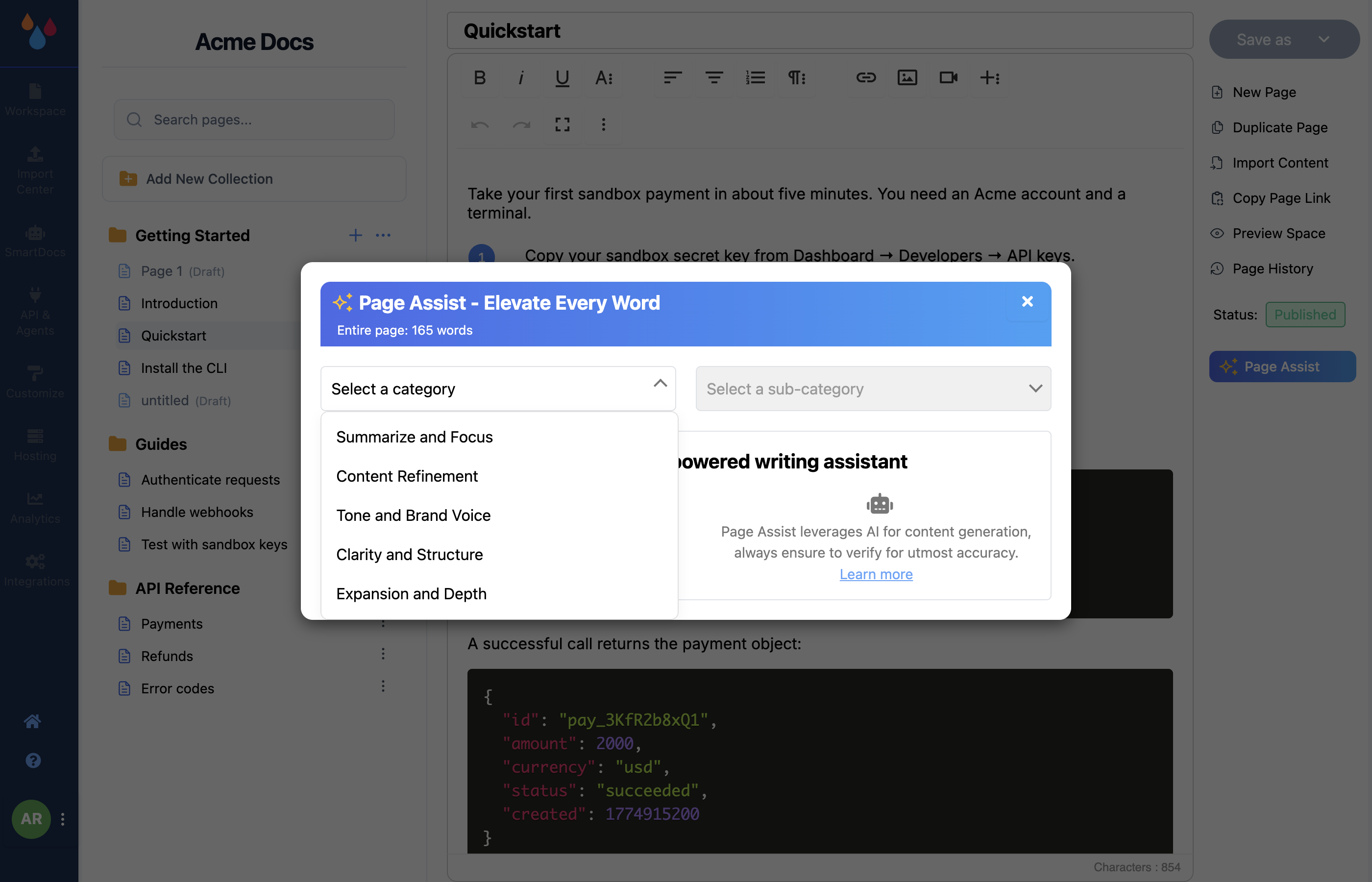
Selection versus whole page
Page Assist works on whatever is selected. Select nothing and it reads the entire page; select a paragraph and it reads only that. The modal header tells you which, with a word count – "Entire page: 412 words" or "Selected text: 96 words".
The limit is 2,500 words. Past that the header warns: "Note: Maximum allowed words is 2500. Excess words will be truncated." On a long page, select the section you actually want rather than letting the tail get cut off silently.
Choose a category, then a sub-category
Two dropdowns, left to right. Pick a category, then pick a sub-category – and the second choice runs immediately, so there is no separate Generate button.
| Category | Sub-categories |
|---|---|
| Summarize and Focus | Quick Summary/TL;DR, Detailed Summary, Bulleted Summary |
| Content Refinement | Content Grammar Check, FAQ Creation, Jargon Translation |
| Tone and Brand Voice | Authoritative, Empathetic, Cheerful, Professional, Inspiring, Sophisticated, Passionate |
| Clarity and Structure | Rewrite for Clarity, Flow Refinement, Restructure Content |
| Expansion and Depth | Detail Enhancement, Gap Spotting, Intro & Conclusion Review |
| Translate | French, German, Polish, Dutch, Swedish, Italian, Spanish, Chinese, Japanese, Thai |
| Search Engine Optimization (SEO) | SEO Recommendations, Keyword Suggestions |
Two of these are more useful than their names suggest. Gap Spotting reads the page and tells you what a reader would still be missing, which is the closest thing to a review you will get without a colleague. Jargon Translation rewrites internal vocabulary into terms a new reader knows.
Translate produces translated content for the page you are on – it is a one-shot rewrite you paste in, not a language switcher. It is unrelated to the multi-language setting, which translates built-in interface labels on your docs site.
Put the result into the page
The result appears in the modal. Two buttons under it apply it, and which two you get depends on whether you had text selected:
With text selected:
- Add below – inserts the result immediately after your selection, leaving the original alone.
- Replace text – swaps your selection for the result.
With nothing selected:
- Add to Page – appends the result to the end of the page.
- Replace all – replaces the entire page body with the result.
Any of the four closes the modal and writes into the editor as a single undo step, so Ctrl+Z /
⌘Z backs the whole insertion out in one go. The change is not saved until you save the page.
Replace all overwrites the whole page
Replace all discards everything currently in the editor. It is the right button when you have just run a full-page rewrite and the wrong one at almost every other moment. If you land on it by accident, undo before saving.
Retry, copy and feedback
Once a result is showing, three more controls appear:
- Retry, beside the dropdowns, re-runs the same sub-category on the same content. Generation is non-deterministic, so a second run genuinely produces a different draft – useful when the first attempt is close but not right.
- A copy button puts the result on your clipboard as plain text, if you would rather paste it somewhere other than the page.
- Like and Dislike send that rating, along with which sub-category you ran, to the Dewstack team. Nothing changes in your page; it is how the option set gets tuned.
Switching to a different sub-category clears the current result and generates a new one, so copy or apply anything you want to keep first.
Verify what it writes
The modal says it directly: "For optimal results, Page Assist uses AI in content creation; we recommend verifying for accuracy." Page Assist is a drafting tool, not a fact checker. Treat anything it produces about behaviour, limits or version numbers as a claim to confirm before you publish.
Plan requirements
Page Assist is available on the Starter, Pro, Premium and Enterprise plans, and to anyone in an active trial.
Below Starter the toolbar button is still there but carries a padlock; clicking it opens an upgrade prompt rather than the assistant. If you see the padlock and expected the tool, that is your plan, not a bug.
Page Assist does not spend SmartDocs message credits. It is gated by plan rather than metered by usage: if your plan includes it, there is no per-run allowance and Page Assist runs do not appear in the Total messages sent figure on the SmartDocs Dashboard tab – that counter tracks reader questions only.
