This is what Dewstack does, feature by feature, with a link to the guide for each one. If you are deciding whether Dewstack fits, read this page and follow the two or three links that matter to you. If you'd rather see it working first, do the quickstart instead – it takes five minutes.
Writing and structure
The editor. A rich-text editor with a formatting toolbar – headings, lists, tables, images, callouts – plus syntax-highlighted code blocks and embeds for YouTube, Loom, CodePen and similar services. Start at Text editor overview.
Collections and pages. A collection is one section of your sidebar; a page lives in exactly one collection, and pages nest into parent/child trees you rearrange by dragging. The collection slug and page slug are the whole public URL. See Create a new collection and Create a new page.
Drafts, publishing and history. Every page is either Draft or Published, and only published pages are ever served – to readers, to the API or to an AI assistant. Dewstack autosaves revisions as you type, and Page History lets you look at an earlier revision and restore it; how many revisions you can see depends on your plan. See Save and publish a page and Page history.
Screenshots you can annotate in place. Click any image in the editor and choose Advanced Edit to crop it, box the region that matters and point arrows at controls, without leaving Dewstack or opening a separate image tool. See Image editor.
Workspaces. Each workspace is a separate site with its own content, theme, URL and access rules. You can duplicate one to stage a redesign, or export it to PDF, HTML or CSV. See Create a new workspace.
The site your readers see
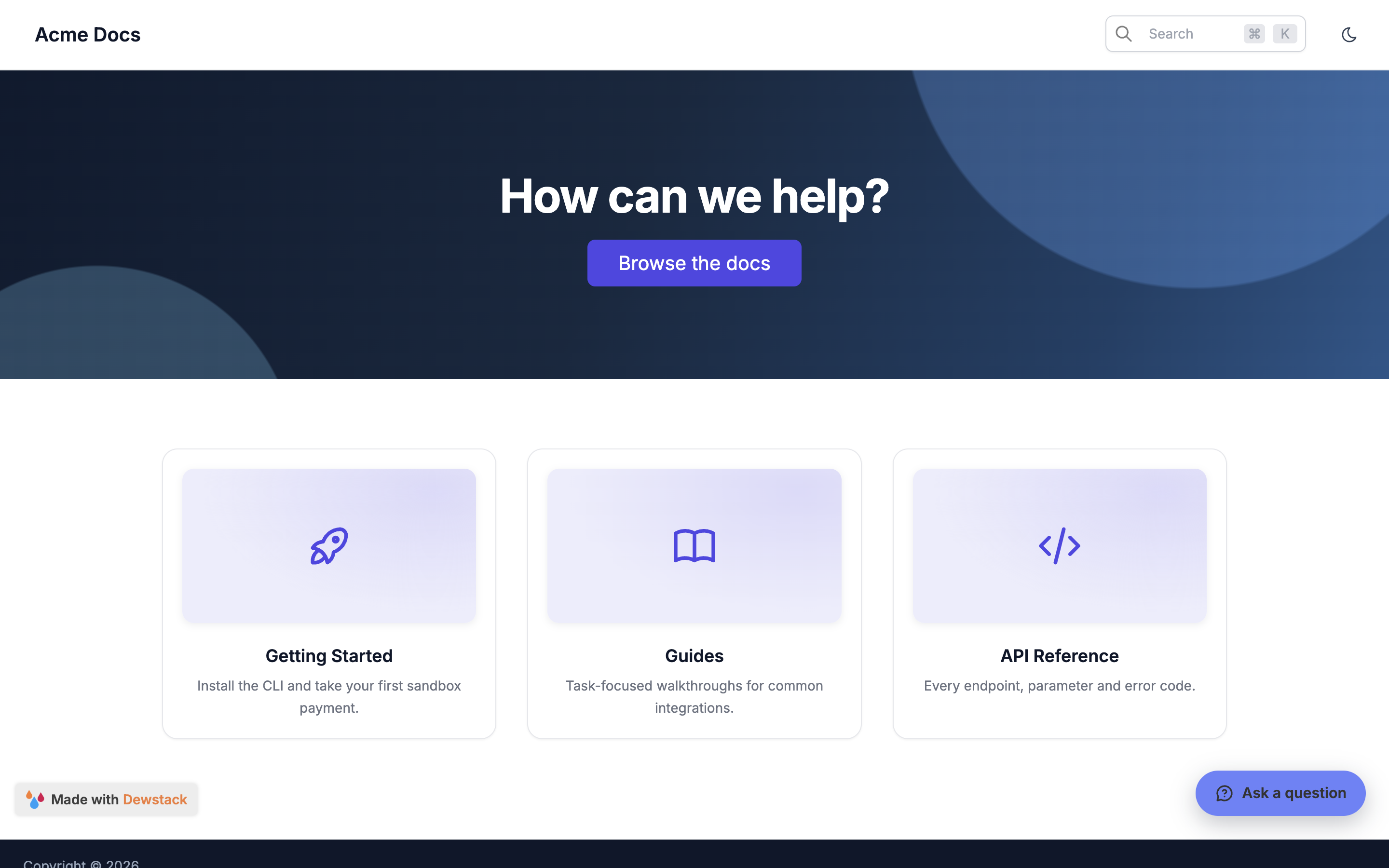
Themes and appearance. Four themes, each with its own layout, plus your logo, favicon, fonts, sidebar colours, header links, footer, CTA buttons and an optional landing page with a hero image. Every control saves immediately and previews against your real site. See Customize your docs site.
Dark mode. Every theme ships with a dark mode toggle in the site header, and the reader's choice is remembered. There is no setting to turn it on – it is always there.
Spaces (tabs). A space is a named group of collections rendered as a top-level tab, each tab with its own sidebar – useful for splitting "Guides" from "API Reference" in one workspace. Tabs only appear on the public site once you have two or more spaces. Configured in Customize → Spaces (Tabs); see Customize your docs site.
Search. Readers get a ⌘K / Ctrl-K search modal over every published page, with results grouped by collection. If SmartDocs is on, an "Ask AI" row appears above the results.
Reader extras. A table of contents built from your headings, prev/next page navigation, a "Was this page helpful?" feedback widget, breadcrumbs, a cookie banner and an optional "Made with Dewstack" badge – each one a toggle in Customize.
Hosting and access
Your URL. Every workspace gets a name.dewstack.com subdomain you can rename. On a paid plan you can point a custom domain at it with a CNAME record; Dewstack handles the certificate. See Custom domain.
Access control. A site is Public, Private (reachable only through a private link you generate) or Protected (a password gate). Private and Protected need a paid plan or a trial; Protected additionally needs Premium or Enterprise. You can create several private links or several password-protected user groups and scope each to specific collections – that scoping needs Pro, Premium or Enterprise. See Access and content sharing.
AI
SmartDocs. Train an assistant on your documentation and put it on your site as a chatbot or an "Ask a Question" widget, then read what people asked and what went unanswered. It also connects to Slack. See What is SmartDocs.
Page Assist. An AI writing assistant inside the editor: summarise, rewrite for clarity, run a grammar check, adjust tone, spot gaps, translate. Results insert below your cursor or replace the selection. Available from Starter upwards, or during a trial. See Using Page Assist.
AI-ready output. Every public Dewstack site serves llms.txt, llms-full.txt, a .md version of each page, and an MCP endpoint that Claude, ChatGPT and Cursor connect to without an API key. Readers also get a Copy page button with "Open in ChatGPT" and "Open in Claude" options. This is on by default on every plan. See AI-ready docs and Connect an AI assistant.
REST API. A read API over your published pages, authenticated with a workspace-scoped key – for scripts, CI jobs and integrations rather than assistants. See API keys.
Getting content in, and seeing what happens to it
Import. Bring in Markdown, HTML, Word, CSV/XLSX, PDF, a zip of files, a web page by URL, or a Notion or Google Docs export. Some formats need Pro or above. See Import content, and Import Center for the document library that also feeds SmartDocs training.
FlowCapture. A Chrome extension that records you clicking through a task and turns it into a step-by-step page: one screenshot and one written step per action, assembled into a draft you review and publish. Built for SOPs and runbooks. Recording needs Starter and up, or a trial. See What is FlowCapture.
Analytics. Visits and page views, your top and stalest pages, what readers searched for and whether they clicked, feedback scores, and AI conversation stats. Analytics is unavailable without a subscription; the number of tabs and the date range you get scale with your plan. See Analytics.
Teams. Invite people as Owner, Admin, Creator or Editor, and assign individual workspaces to individual members so they only see what they work on. Invites expire after 7 days. See What is team support and Assign workspace.
