SmartDocs is configured on one dashboard page – SmartDocs in the left sidebar. A single master toggle turns the feature on and reveals six tabs; until it is on, there is nothing else on the page.
If you are not sure what SmartDocs is or why readers cannot see it, start with What is SmartDocs.
Turn SmartDocs on
At the top of the page is a toggle labelled Enable SmartDocs. Switch it on and the label changes to Disable SmartDocs, and the six tabs appear below it.
The toggle is per workspace. Enabling it in one workspace does nothing to any other.
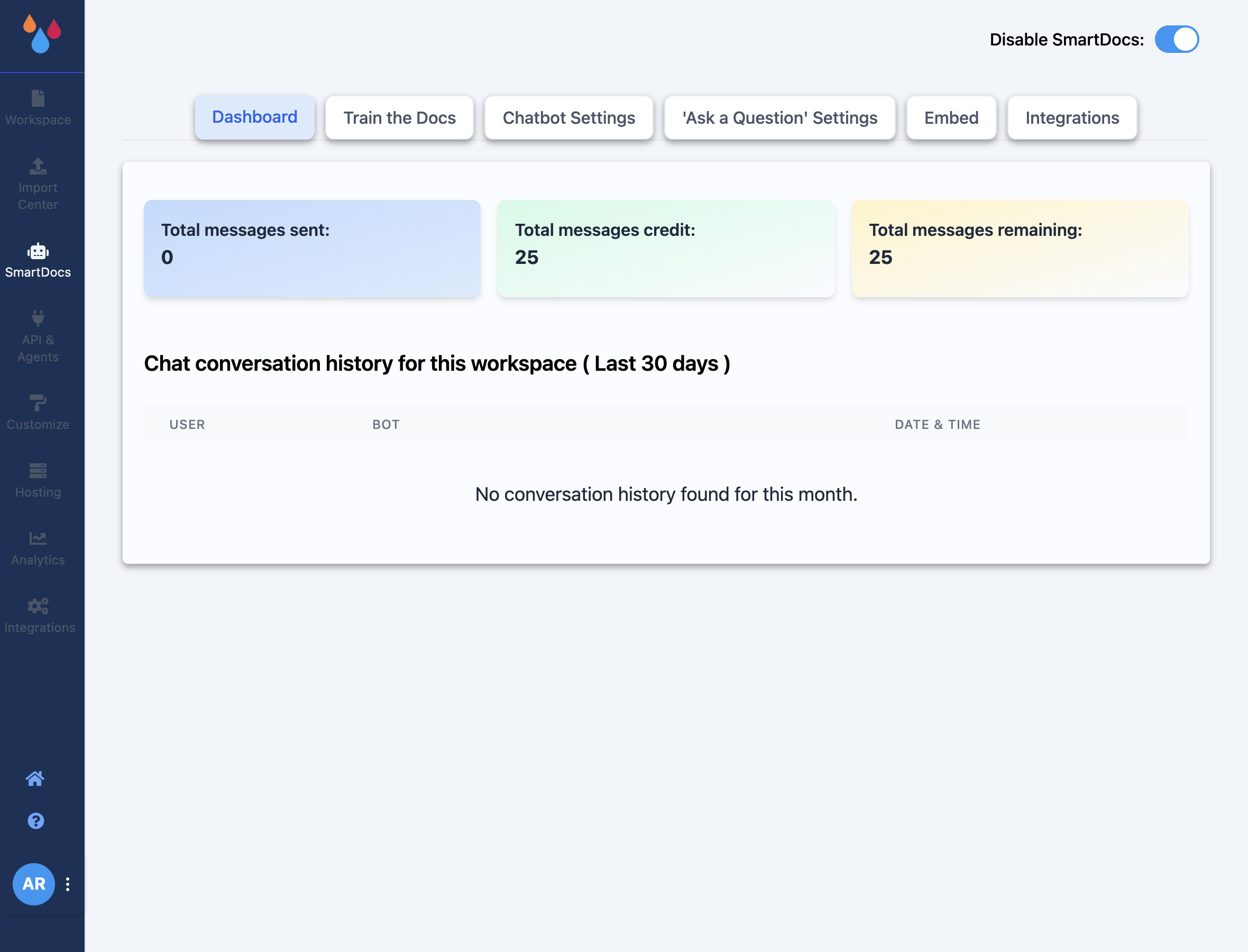 The SmartDocs page with the feature enabled, showing its six tabs with Dashboard selected
The six tabs
| Tab | What it is for |
|---|---|
| Dashboard | Message usage and chat history |
| Train the Docs | Choose the content the AI answers from, and train the model |
| Chatbot Settings | Appearance and copy for the embeddable chatbot |
| 'Ask a Question' Settings | The widget on your own docs site – its toggle and its styling |
| Embed | Snippets for putting the chatbot or the widget on another website |
| Integrations | Connect the chatbot to Slack |
Dashboard
Three counters – Total messages sent, Total messages credit and Total messages remaining – plus the chat conversation history for the workspace over the last 30 days, which you can download as a spreadsheet. This is where you find out what readers are actually asking, which is usually a better list of pages to write than your own.
Train the Docs
SmartDocs answers only from a model you train, so this tab is not optional – the other tabs warn you that "Training the documents is mandatory before using this feature."
You pick content from two sources, Published Pages and Imported Documents, with a running total of selected content and size against your Plan Limit, then train. The tab shows the Active Training Model with its model ID, content, and when it was last trained, a box to test the trained model, and a Training History list of previous runs.
Because answers come from the trained model rather than from your live workspace, publishing a page does not put it into SmartDocs answers until you retrain.
Chatbot Settings
Appearance and copy for the chatbot you embed on other sites: Header Background Color, System Message Background Color, User Message Color, Chat Bubble Button Color, the Bot Profile Icon, User Avatar Icon and Chat Launcher Icon, plus Initial Messages, Suggested Messages, Display Name, Allowed Sites and Support Email.
Allowed Sites is the one worth attention: it controls which domains may embed the chatbot.
'Ask a Question' Settings
This tab controls the widget on your own Dewstack docs site, and it has its own toggle, separate from the master one at the top of the page. Both must be on before readers see anything.
Four settings, then Save Changes:
- Button Background Color – the colour of the floating button.
- Suggested Messages – one per line; they appear as starter prompts in the panel.
- Placeholder name – the text on the button itself. Leave it blank and readers see the localized default, "Ask a question".
- Main Button icon – upload an image to replace the default icon.
A live preview of the widget sits beside the settings, so you can see the colour and label before saving.
Two toggles, not one
Turning on Enable SmartDocs does not put the widget on your docs site. The 'Ask a Question' toggle inside this tab is a second, independent switch. A widget that never appears is almost always this.
Embed
Copyable snippets for four things: Chatbot Embed Code, Chatbot iFrame Code, Ask a Question Embed Code and Ask a Question iFrame Code. The embed version includes a Widget Button Position setting for choosing which corner the button sits in. Use these to put SmartDocs on your marketing site or in your product, not on your Dewstack docs site – there, the 'Ask a Question' toggle handles it.
Integrations
Connects the chatbot to Slack so a team can ask your docs questions without leaving Slack. Click Add To Slack, complete the Slack authorization, and the workspace appears under Connected Workspaces with a control to disconnect it. See Integration with Slack for the full walkthrough.
Message credits
Every answer SmartDocs generates spends one message credit from your workspace's allowance. Two things spend them:
- The Ask a question widget and the Ask AI row on your docs site.
POST /v1/askon the REST API, which returns429once the quota is exhausted.
Reading your docs over MCP does not spend credits. An AI assistant connected over MCP can search and read every published page for free – it is retrieving your content, not asking Dewstack to generate an answer. If your credits are the constraint, MCP is the surface to point power users at.
Watch the balance on the Dashboard tab.
