Import Center is a document library. You upload source material into it once – PDFs, Word files, text, markdown – and then reuse each document for two things: generating documentation pages, or training SmartDocs. The same upload serves both, so you never have to supply the same PDF twice.
Open it from Import Center in the left sidebar. The page header reads "Manage and organize your documents", with two buttons: Connect Service and Import Documents.
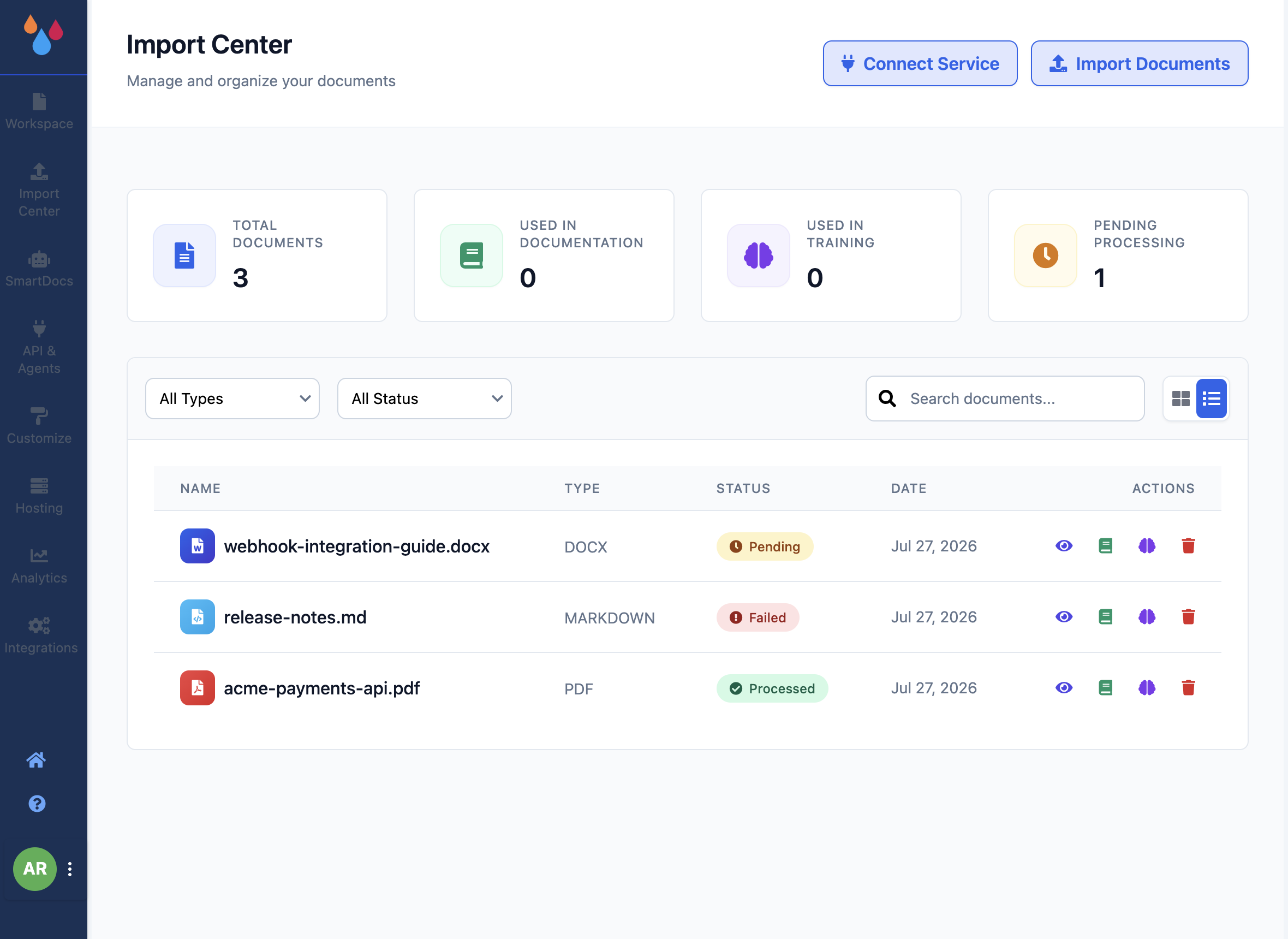
What Import Center is for
A document you add here is not yet part of your docs site. It sits in the library until you act on it. That separation is the point: you can upload a 200-page product spec, look at it, and then decide whether it should become pages, become SmartDocs training material, or both.
- Use in Documentation hands the document to Dewstack's AI, which reads the extracted text, groups it into collections and creates pages in the workspace you currently have open.
- Use in Training sends the document to SmartDocs so the AI assistant can answer from it without those pages ever appearing on your site.
The document list
Each row shows the document's Name, Type (PDF, DOCX, TXT, MARKDOWN), Status, and the
Date it was added. Next to the type you'll see a page-count estimate in the form (~48 pages)
once processing has finished. That estimate is derived from the amount of text extracted, not from
the file's own page numbering, so it will not always match what your PDF reader shows.
Status badges
| Badge | What it means |
|---|---|
| Pending | The document is queued or actively being processed. Text extraction has not finished, so the row actions are not useful yet. |
| Processed | Text was extracted successfully. The document is ready to use in documentation or training. |
| Failed | Extraction did not complete. Common causes are a scanned PDF with no text layer, or a corrupt file. Delete it and re-upload, or convert it to text first. |
Pending rows show a progress bar. The list refreshes on its own – you do not need to reload the page to watch a document move from Pending to Processed.
The four row actions
Each row carries four actions on the right. In list view they are icons with tooltips; in card view they are labelled buttons.
- Preview (eye icon) – opens the extracted text so you can check what Dewstack actually read out of the file before you commit it to anything. Worth doing once on your first PDF.
- Use in Documentation (book icon) – generates collections and pages in the workspace you currently have open. Processing runs in the background and takes roughly one to three minutes; you can keep working while it does. When it finishes, the action greys out and reads "Used in Documentation".
- Use in Training (brain icon) – adds the document to SmartDocs training and takes you to the Train the Docs tab. It becomes "Used in Training" afterwards.
- Delete (trash icon) – removes the document from the library. Pages or training material already generated from it are not removed.
Generated pages arrive published and flat
Pages created by Use in Documentation are created with status Publish, and they arrive as a flat list – nesting is not reconstructed. Plan on a pass through the page tree afterwards to reorder and nest them.
Limits and plan requirements
- Import Center is hidden without a subscription unless you are in an active trial. Team members also need the Manage Import Center permission to see the sidebar entry.
- Connect Service – importing from Google Drive, Notion, GitHub, Confluence, Jira or Dropbox – additionally requires Pro, Premium, Enterprise or an active trial. Uploading files yourself does not.
- Documents above roughly 320 pages cannot be used for documentation. See Upload documents for the full set of file limits.
