A code block is a framed, syntax-highlighted snippet with a language label and a Copy button. You insert one with Add Code Block on the editor toolbar, pick a language, and paste your code into the dialog – code blocks are not typed inline in the page body.
Insert a code block
- Put the cursor where the block should go and click Add Code Block on the toolbar.
- Choose your language from the Select Language dropdown.
- Paste your code into the box under "Insert your code below:".
- Click Add Code.
The block is inserted at the cursor, already highlighted. Close dismisses the dialog without inserting anything.
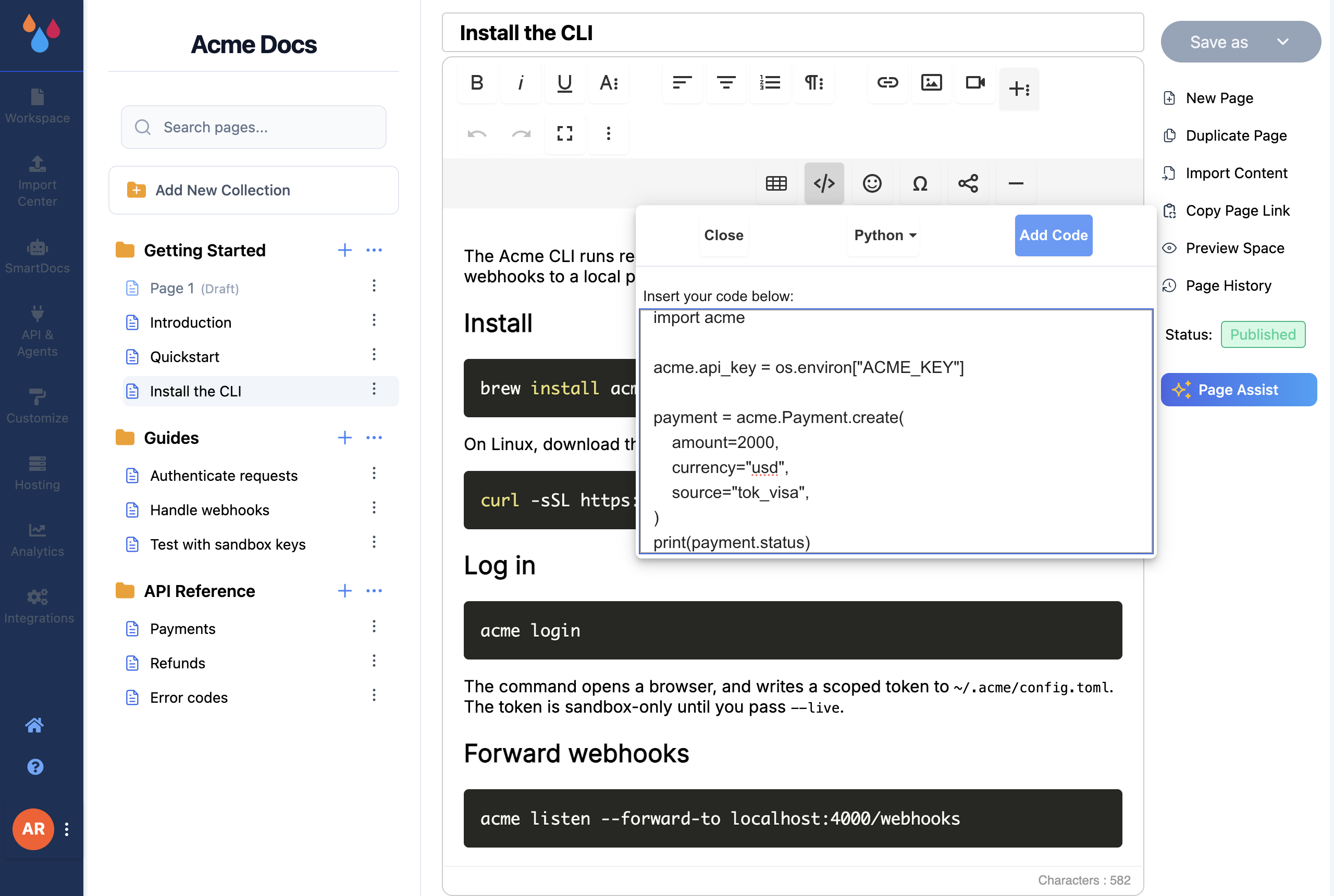
Choose the language
The Select Language dropdown covers 24 languages:
Bash, C, C#, C++, CSS, Go, GraphQL, Java, JSON, JSONP, Javascript, LaTeX, Markdown, Markup (HTML/XML/XHTML), MATLAB, Objective-C, Perl, PHP, PL/SQL, Python, Ruby, SQL, Swift, TypeScript.
The language does two jobs. It drives the syntax colouring, and it becomes the label your readers see in the corner of the published block – which is how someone scanning a page of snippets finds the one in their language.
Pick the language before you click Add Code
Dewstack does not fall back to a sensible default. If you insert a block while the dropdown still reads Select Language, the published block gets a meaningless label and no highlighting. Set the dropdown first.
Edit an existing code block
Double-click a code block in the editor. The same dialog reopens with the code already loaded and the language dropdown set to whatever the block was tagged with, and the button now reads Edit Code. Saving replaces the block in place.
Code blocks are not editable by clicking into them – double-clicking to open the dialog is the only way to change one. That is what stops a stray keystroke from corrupting a snippet.
What readers get
On your published docs site, every code block is wrapped in a frame with a header bar. The header shows the language on the left and a Copy button on the right; clicking it copies the snippet and the button switches to Copied for a couple of seconds. A block with no language falls back to a generic Code label.
The Copy button copies the code with its line breaks intact, so a multi-line shell script pastes into a terminal and runs. That is worth stating because it is the failure mode of most copy buttons.
Here is how two blocks come out. A Bash block:
curl -H "Authorization: Bearer $DEWSTACK_API_KEY" \
  https://docs.acme.com/api/public/v1/articles
And a JSON block:
{
  "collection": "api-reference",
  "article": "authentication",
  "status": "Publish"
}
Both render with the same chrome – only the label and the colouring differ.
