Customize → Page Features controls the sidebar's colours and four things a reader sees on every article page: the table of contents, the feedback widget, prev/next navigation, and the "Last updated" date. The preview pane beside the settings shows a sample article, so most of these toggles can be judged there.
The Auto-Save Option section, further down the Customize page, is covered here too – it is the only Customize setting that changes the editor rather than the published site.
Colour the sidebar
Four pickers, applied to the docs sidebar on every theme:
- Sidebar background color
- Sidebar text color
- Sidebar highlight text color
- Sidebar highlight background color
The two "highlight" colours style the currently-open page's row. Set them to something with real contrast against the background – that row is how a reader knows where they are in a long sidebar.
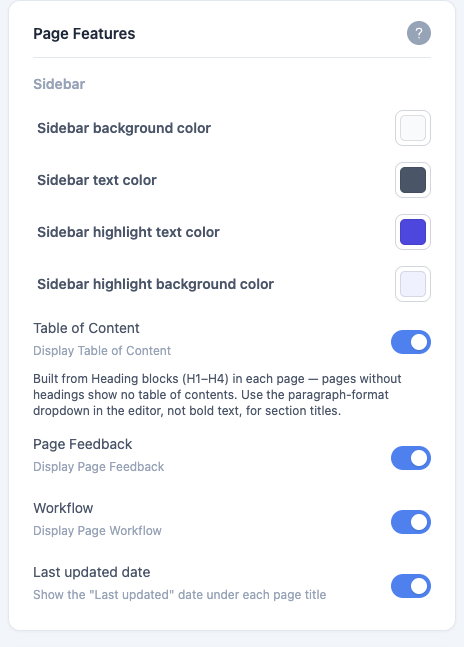
Table of Content
Toggle Table of Content ("Display Table of Content") to show a per-page contents list.
Dewstack builds it from the Heading blocks in the page – H1 through H4. It does not read bold text or large text as a heading, so a page whose sections are marked up with bold paragraphs gets no table of contents at all. Use the paragraph-format dropdown in the editor for section titles. A page with no headings shows nothing, even with the toggle on.
On desktop it renders as a rail to the right of the article, highlighting the section you are currently reading as you scroll. On mobile it collapses into a control showing the current heading, which expands to the full list. The rail's heading text depends on your theme – Table of Contents on Theme 3, On this page on Themes 1 and 2. See Themes and dark mode.
Page Feedback
Toggle Page Feedback ("Display Page Feedback") to ask readers whether a page helped, under the heading WAS THIS PAGE HELPFUL?
What they click depends on the theme. Theme 2 shows a Yes / No pair of thumb buttons in the right-hand rail, next to the table of contents. The other themes show a row of three faces – sad, neutral, happy – below the article body, which records a middle rating as well as the two extremes.
A reader's answer is remembered in their browser per page, so the widget does not keep asking on a page they have already rated. The ratings you collect roll up into the Feedback Received figure and the Feedback Distribution card in Analytics.
Workflow
Toggle Workflow ("Display Page Workflow") to add Prev and Next links at the foot of
each article. Each link is captioned with the collection it leads into – Next · API Reference.
The order follows your sidebar exactly, walking through collections and their pages top to bottom. If you use spaces, pagination is scoped to the active space: the last page of a tab has no Next, and a reader is never carried across a tab boundary without choosing to.
Last updated date
Toggle Last updated date – "Show the 'Last updated' date under each page title".
This one is on by default. If you have never touched it, your docs are showing a date. That is usually what you want on documentation; turn it off if you maintain evergreen pages where a months-old timestamp would make accurate content look stale.
Auto-Save Option
The Auto-Save Option section has a single toggle, Enable/Disable auto-save for content. With autosave on, the editor saves your work about five seconds after you stop typing. It is off until you switch it on – a workspace that has never touched this toggle does not autosave, and you must save manually after every edit.
Autosave is what makes work survive a closed tab, a browser crash or a dropped connection. On a paid plan or trial it also writes a restorable revision, which you can roll back to from Page History.
Autosave never changes a page's status – which cuts both ways
On a draft, autosaving keeps it a draft. But on a page that is already published, autosave writes straight to the live page: readers see your edits without you clicking Publish. Set a page back to Draft first if you want to rework something that is live. See Save and publish a page.
