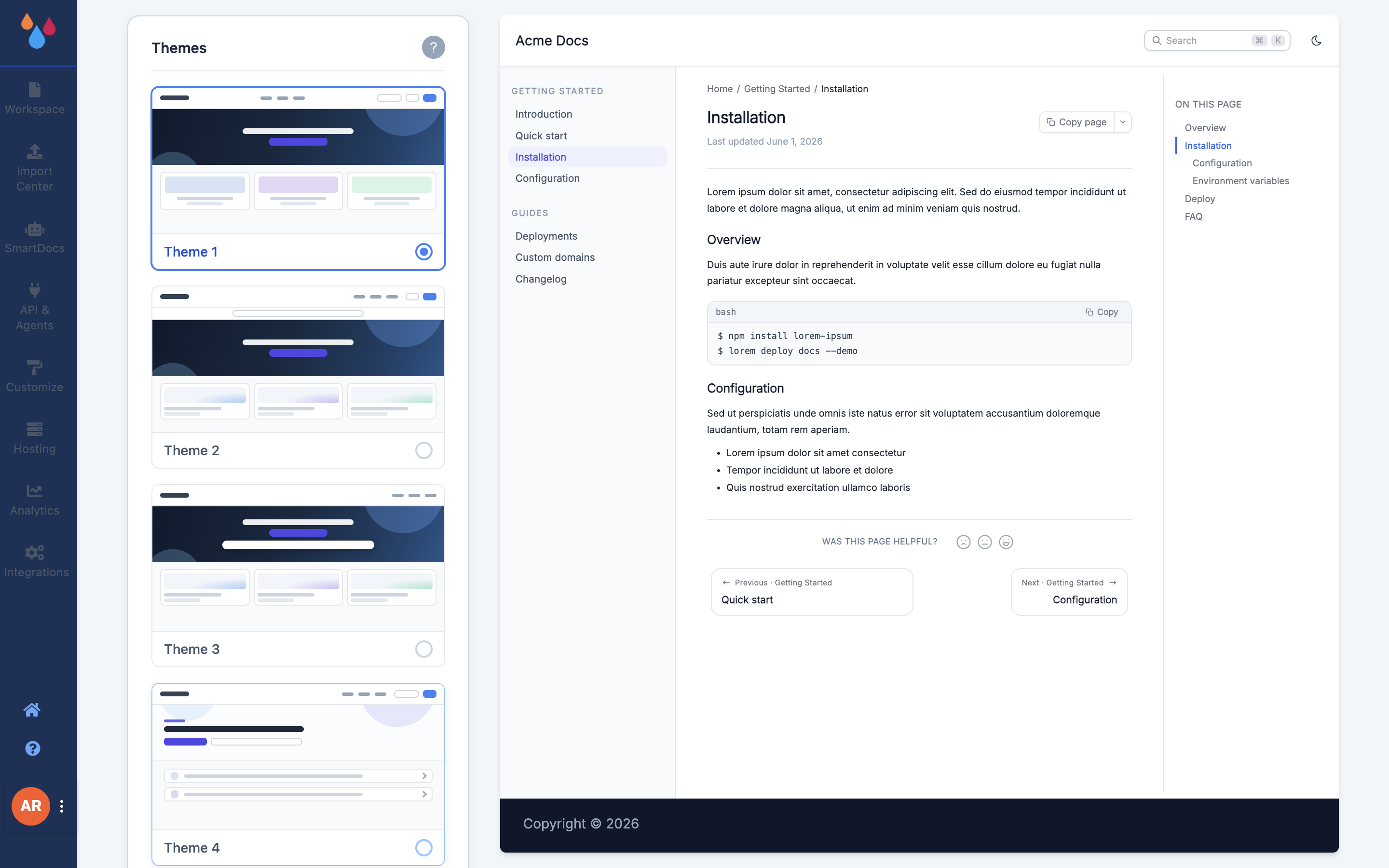
Customize is where you set what your published docs site looks like – theme, logo, colours, landing page, tabs, SEO and the reader-facing toggles. It is one workspace at a time: every setting on the page applies to the workspace you currently have open.
There is no Save button. Every change is written the moment you make it – the moment you release a colour picker, leave a text field, or flip a toggle – and a toast confirms it.
Where Customize lives
Open Customize in the left sidebar of the dashboard. The page is two columns: a scrolling stack of collapsible sections on the left, and a preview pane on the right.
The entry is hidden for team members whose role does not include the Customize workspace permission. If a teammate cannot find it, that is why – see Manage team members.
How the preview works
The preview shows a sample article – placeholder body text and a placeholder page list – with your theme, colours, fonts, title and page-feature toggles applied to it. It updates as you change those settings, so it is a fast way to see what a theme or a colour does.
Note
It is not your site. The pages listed in the preview's sidebar are not your pages, it always shows an article layout regardless of the section you have open, and you cannot click through it. To see the real thing, open your docs URL in another tab and refresh it after a change.