Dewstack can load your own Google Analytics tag on your published docs site, so page views, sessions and audience data from your documentation land in your own Google Analytics property alongside the rest of your web traffic. You add it in Integrations, and it takes one field: your Google Analytics ID.
This is separate from the Analytics page inside Dewstack. That dashboard is built from Dewstack's own measurement and is available on its own set of plans; this integration sends data to your account, where you control the reports.
Add your Google Analytics ID
- Open the workspace and click Integrations in the left sidebar.
- In the Google Analytics card, paste your ID into the field. The placeholder shows the two accepted shapes:
E.g. UA-XXXXXXXXX-X or G-XXXXXXXXXX. - Click Save. A toast confirms "Google Analytics Id updated successfully."
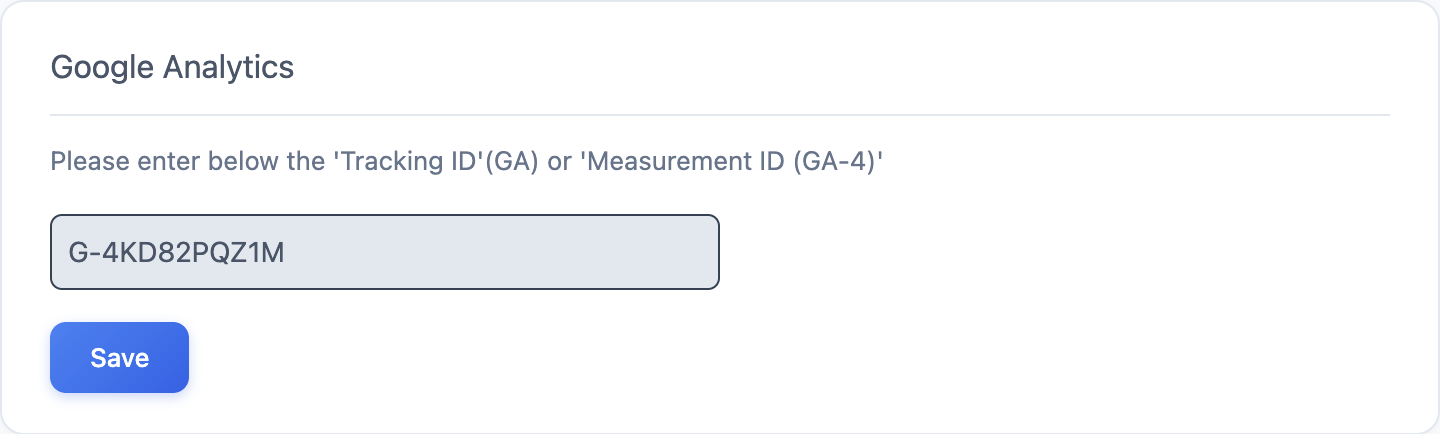
The card labels the field as the "'Tracking ID'(GA) or 'Measurement ID (GA-4)'". A Google Analytics 4 property uses a Measurement ID beginning with G-, which you find in Google Analytics under Admin → Data Streams → your web stream. IDs beginning with UA- belong to the retired Universal Analytics properties; the field still accepts them, but Google stopped processing Universal Analytics data, so a UA- ID will not collect anything.
Change or remove the integration
Once an ID is saved, the field is read-only and the Save button is replaced by Remove. Click Remove to clear the ID and stop the tag loading; then save a new ID if you are moving to a different property.
What to expect in your reports
The tag loads on your published docs site, not in the Dewstack dashboard, so nothing appears until a reader visits your documentation. Active readers show up in Google Analytics Realtime straight away; Google's standard reports finish processing a day's data roughly 24 hours later. That processing delay is why totals in your Google Analytics reports and totals on Dewstack's own Analytics page rarely match exactly on any given day.
Limits and plan requirements
- One Google Analytics ID per workspace. To track several workspaces, add the ID to each one, or use a single property and separate them by hostname in Google Analytics.
- The Integrations sidebar entry is locked on Starter, and when you have no subscription and no active trial. In those cases clicking it opens an upgrade prompt instead of the page.
- Team members need the Integrate Workspace permission. Owners and Admins have it; Creators and Editors do not.
