Both live on the workspace card's kebab menu, on the My Workspaces list. Editing changes a workspace's name and whether it is public or private. Deleting removes the workspace and everything inside it, permanently, with a single confirmation.
Open the workspace menu
On the workspaces list, each card has a ⋮ menu. It holds Edit Workspace, Assign Workspace, Duplicate Workspace, Export Workspace and Delete Workspace.
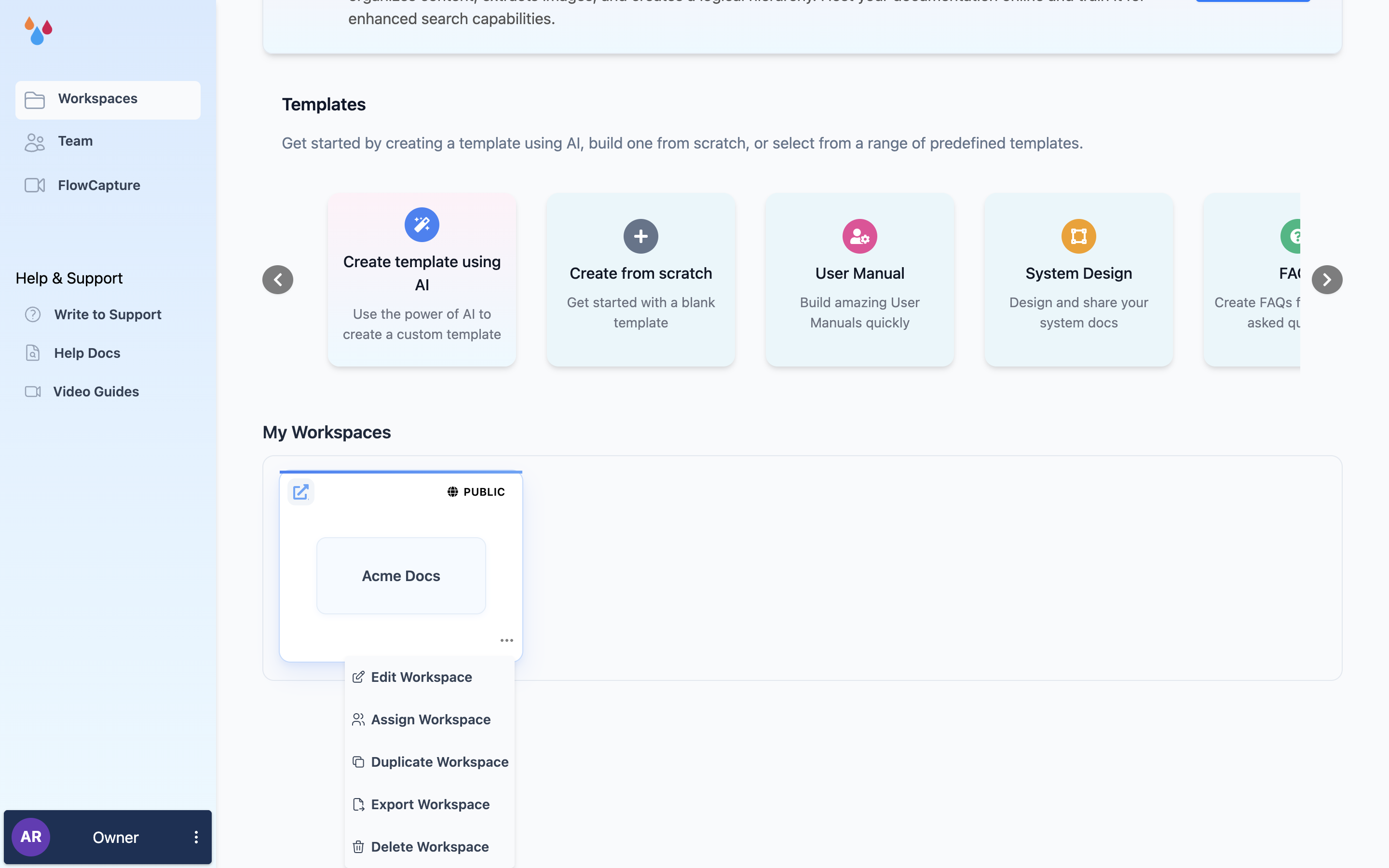
Edit a workspace
Edit Workspace opens a dialog titled Edit '<workspace name>' with two things in it:
- Name – the workspace's name in your dashboard. It is also the title shown in the editor sidebar. It is not your site's URL and it is not the title on your published site: the URL is the subdomain under Hosting & Visibility, and the site title is Title under Customize. Renaming here breaks nothing.
- Public / Private – the same two radios as the New Workspace dialog. Private is disabled with a padlock unless you have a paid subscription or an active trial.
Click Edit to save, or Cancel to back out.
This dialog only offers the Public/Private pair. Protected – password access – and everything else about visibility, including private link rules and per-collection access, is set inside the workspace under Hosting & Visibility.
Delete a workspace
Delete Workspace opens Delete '<workspace name>', which asks "Are you sure you wish to
delete this workspace?" and gives you Cancel and Delete workspace. There is no name to
type and no second confirmation.
Deleting a workspace cannot be undone
Every collection, every page and every draft in the workspace goes with it, along with its settings and its subdomain. Dewstack has no trash and no restore for workspaces, and Page History cannot help you – it only restores revisions of a page that still exists. If there is any chance you'll want the content back, run an export first and wait for the email before you delete.
If what you actually want is to take a site offline rather than destroy it, set its visibility to Private under Hosting & Visibility instead. The site stops being reachable at its public URL, and the content stays where it is.
Who can do this
The workspace menu is on the card, so anyone who can see the card can open it. Editing and deleting follow your team role: Owner and Admin can do both, and a member who has only been assigned the workspace works inside it rather than managing it: Delete Workspace appears on the card menu for Owners and Admins only. Creators and Editors do not see the item at all.
