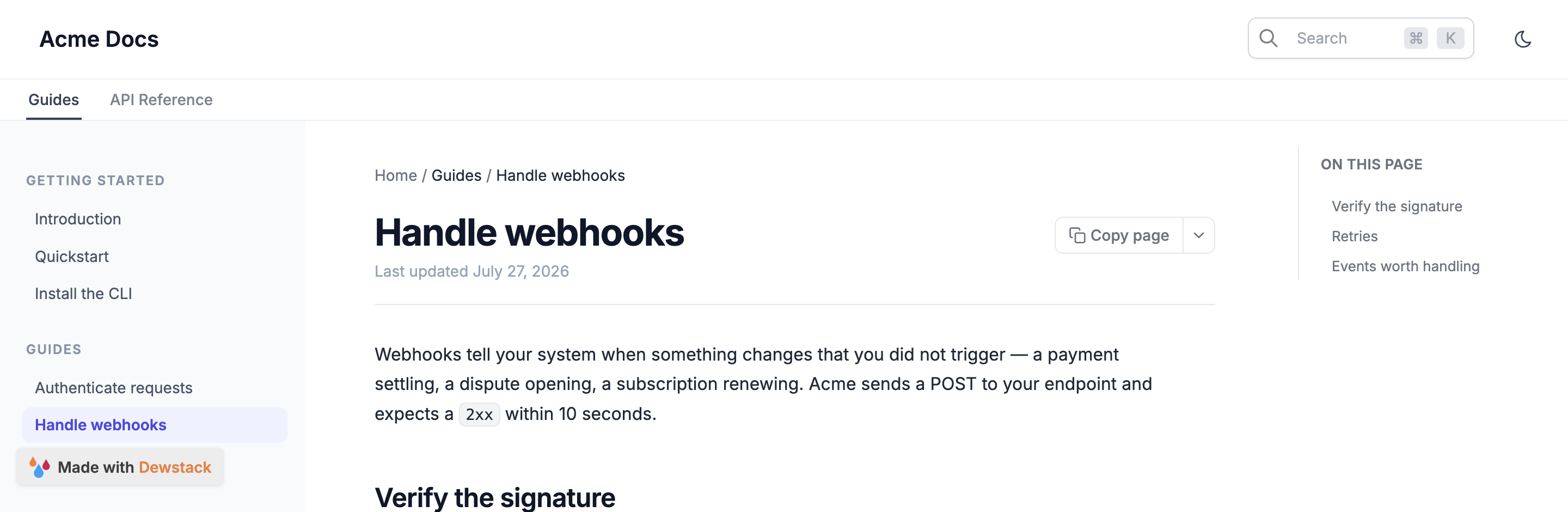
A space is a named group of collections that becomes a top-level tab on your Dewstack docs site – Docs, API, Help Center. Each tab has its own sidebar, so a reader in one tab sees only that tab's collections.
Spaces are organisation, not routing. Public URLs contain no space segment, so moving a collection from one space to another never changes a single URL. A page stays at /docs/<collection-slug>/<page-slug> whichever tab it is filed under.
What changes on your docs site
Tabs appear only once you have two or more spaces. With one space, or none, your site is exactly as it was – the Customize panel says so directly: "With one or no spaces, your site is unchanged."
With two or more:
- A tab row renders above the sidebar on docs pages. Your landing page is unaffected.
- Each tab has its own sidebar, listing only the collections assigned to that space.
- Prev/next pagination is scoped to the active space. The last page of a space links to nothing further; navigation never walks a reader out of the tab they are reading. See Page features.
- Search results are grouped as Space / Collection rather than by collection alone.
Set up two tabs
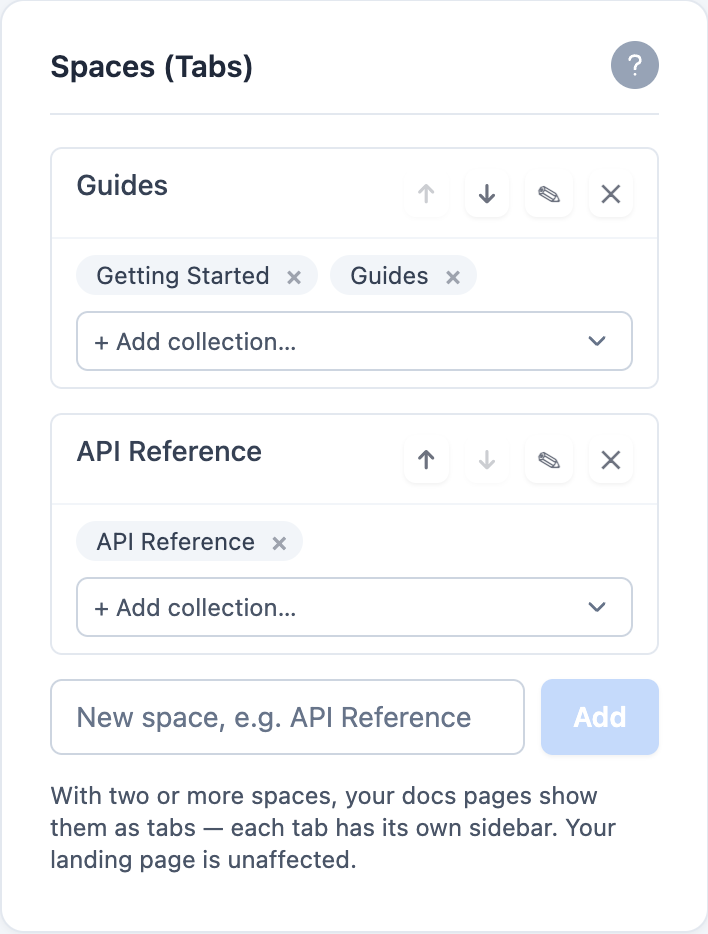
The panel is at Customize → Spaces (Tabs). The preview pane does not render tabs, so open your docs URL in a second tab to watch the tab row appear.
- Open Customize → Spaces (Tabs).
- Type a name in the New space, e.g. API Reference field and click Add. Dewstack confirms with Space "…" created.
- In that space's card, use the + Add collection… dropdown to pick a collection. It appears as a chip on the card.
- Add the second space the same way, and assign the collections that belong in it.
- Reload your docs site. With two spaces present, the tab row is now above the sidebar.
Space names must be unique. Reusing one is refused with A space with this name already exists.
Assign collections to a space
Each space card lists its collections as chips, or shows No collections yet when it is empty. The + Add collection… dropdown offers every collection not already in that space, annotating the ones that are currently elsewhere – Billing (in API Reference) – so you can see what you are about to move.
A collection lives in at most one space. Picking it from a second space's dropdown moves it; it does not copy it.
To take a collection out of a space without putting it in another, click the × on its chip (Remove from this space).
You can also set this from the other end. Once at least one space exists, a collection's edit panel in the workspace editor gains a Space select – "Which tab this collection appears under on your docs site." – with a Default option that leaves it under the first tab. Use whichever is closer to hand: the Spaces panel when you are arranging tabs, the collection panel when you are already editing that collection.
Rename, reorder and delete spaces
Every space card has four controls on its right-hand side:
- ↑ Move up and ↓ Move down – reorder the spaces. The order here is the left-to-right order of the tabs on your site. If the reorder fails to save, Dewstack restores the previous order and tells you: Could not reorder – order restored.
- ✎ Rename – edit the name inline, then Save or Cancel. Renaming re-derives the space's internal slug from the new name. Because space slugs are not URL segments, this cannot break an existing docs link. A name already used by another space is refused with Another space already uses that name.
- ✕ Delete – removes the space.
Deleting asks you to confirm, and the wording is the whole story:
Delete space "Help Center"? Its collections move to the first tab – no content is deleted.
Collections you have not assigned
A collection that belongs to no space still publishes normally. The panel lists them under a line reading Not in any space (shown under the first tab): followed by their names, and that is where a reader will find them – grouped with your first tab.
Sweep up the unassigned list before you launch tabs
That line is easy to scroll past. A collection left out of every space is not hidden, but it is filed somewhere you did not choose, and it will move if you reorder your spaces. Assign every collection deliberately.
