Instead of downloading files and re-uploading them, you can connect Import Center directly to a service you already keep documents in and pick the files from there. Dewstack supports Google Drive, Notion, GitHub, Confluence, Jira and Dropbox. Connecting requires the Pro, Premium or Enterprise plan, or an active trial.
Start from the Connect Service button in the Import Center header. If the button carries a padlock, your plan does not include service connections.
Connect and import
- In Import Center, click Connect Service. The dialog opens on Import from External Service with the prompt "Select a service to import documents from:".
- Pick a service. Dewstack shows a confirmation step – "You'll be redirected to
<service>to authorize access to your documents" – with a Connect with<service>button. - Authorize Dewstack in the service's own sign-in window, then come back.
- Choose the files you want. The step is titled Select Files from
<service>and has a search box; tick each file, or use the select-all checkbox. - Click Import Selected.
Imported files land in the Import Center document list exactly as uploaded files do – Pending until text extraction finishes, then Processed – and carry the same Preview, Use in Documentation, Use in Training and Delete actions.
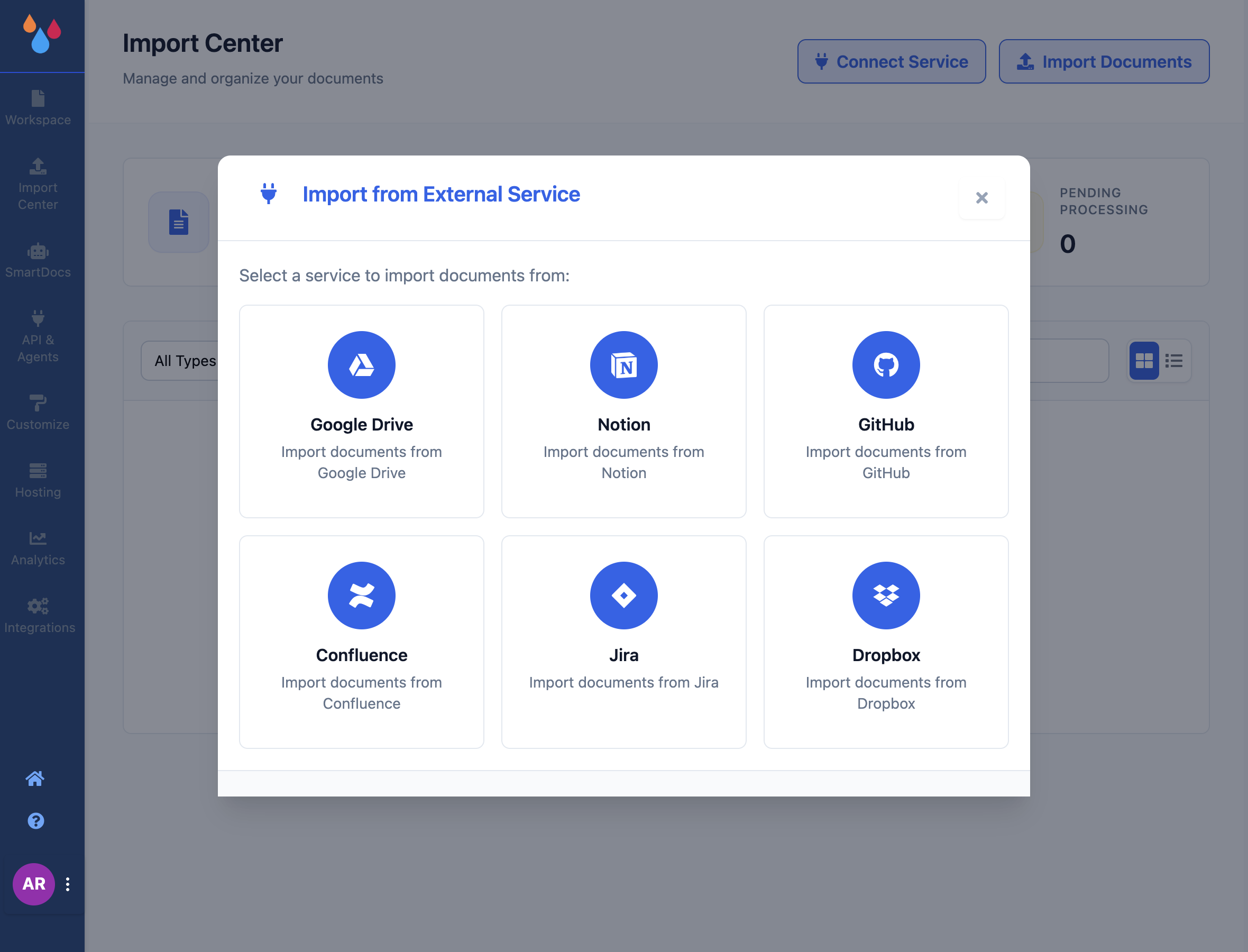
Which services you'll see
The dialog lists the services that are available on your Dewstack deployment, which is why this page says "available services are shown in the dialog" rather than promising a fixed set. Each connection runs over OAuth – you authorize Dewstack from inside the service, and Dewstack never asks for your password for that service.
Across the six supported platforms the flow differs slightly:
- Google Drive, Dropbox, Notion, GitHub – authorize, then browse and select files. Large Drive folders and large repositories can take a moment to list.
- Confluence – after authorizing, choose your Confluence site (Select Confluence Site), then the files.
- Jira – choose your Jira site, then one or more projects (Select Jira Projects), then the files.
If a service you expect is missing from the dialog, it has not been configured for your deployment. Contact support rather than assuming the connection failed.
Revoking a connection
Access is granted by the service, not by Dewstack, so the authoritative way to revoke it is in that service's own connected-apps settings – Google Account permissions, Notion's connections page, GitHub's OAuth applications list, and so on. GitHub connections can also be reset from within the Dewstack dialog.
Limits and plan requirements
- Connect Service requires Pro, Premium, Enterprise or an active trial. On other plans the button shows a padlock and opens an upgrade prompt. Uploading files by hand has no such gate – see Upload documents.
- The Import Center sidebar entry itself is hidden without a subscription or an active trial, and for team members without the Manage Import Center permission.
- Files pulled in from a service are subject to the same processing limits as uploads, including the roughly 320-page ceiling for Use in Documentation.
