Every Dewstack workspace publishes to a *.dewstack.com subdomain, and you decide who may open it from Settings → Hosting & Visibility. There are three visibility modes – Public, Private
and Protected – and the last two let you hand out several different links or passwords, each
scoped to its own set of collections.
Your Dewstack subdomain
The Dewstack URL card sets the name in front of .dewstack.com. Dewstack assigns one when the workspace is created; type a new one and click Save to change it.
A subdomain may contain lowercase letters, digits and hyphens only. Anything else is rejected with the message "Subdomain format is incorrect. Please use only lowercase alphabets or numbers and only hyphen between the words". To publish under your own domain instead, see Custom Domain.
Choose a visibility mode
Visibility is a three-way radio group, and Dewstack describes the modes like this:
| Mode | Dewstack's description |
|---|---|
| Public | "The content will be accessible to everyone with Dewstack subdomain or Custom domain ( If that is added )" |
| Private | "The content will only be accessible with private URL" |
| Protected | "The content will only be accessible via password" |
Switching modes saves immediately. Private and Protected are locked with a padlock unless you are on a paid plan or in a trial, and Protected needs a higher plan still – see Limits and plan requirements below.
Public is also the only mode that keeps machine-readable endpoints alive: an AI assistant connected over MCP gets a 404 from a Private or Protected workspace.
Private link rules
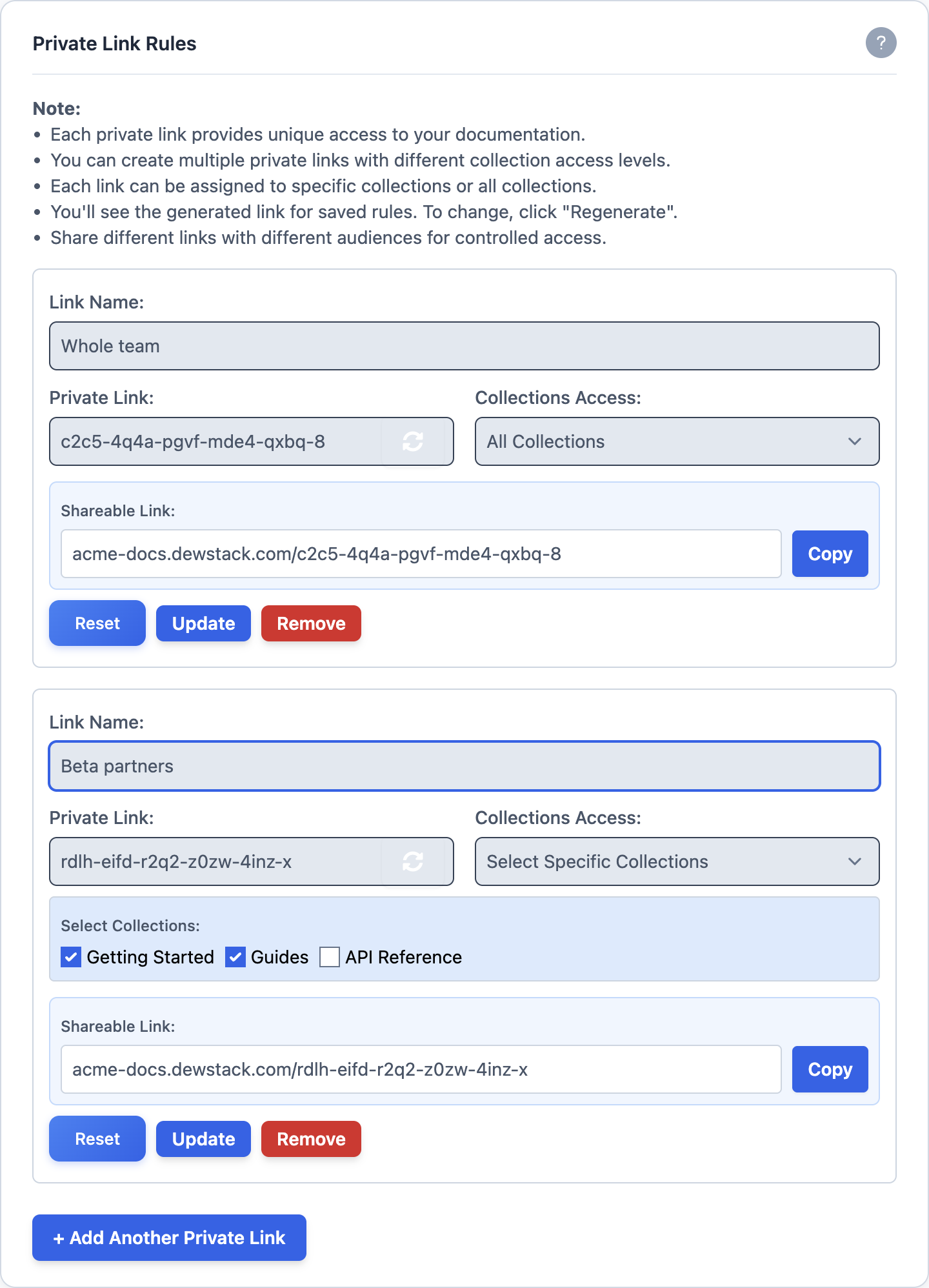
Choosing Private reveals the Private Link Rules card. Each rule is one unguessable URL you can share with one audience, and you can create as many as you need.
A rule has three fields:
- Link Name – what the link is for, e.g.
Admin Team,External Partners. Required. - Private Link – the random segment appended to your docs URL. Dewstack generates it when you save; the circular arrow button next to it regenerates the link, which invalidates the old one.
- Collections Access – either All Collections or Select Specific Collections. Choosing the second shows a checkbox per collection, and readers arriving on that link see only what you tick.
Below the fields, Shareable Link shows the full URL a reader will use – yourname.dewstack.com/<private link>, or your custom domain if you have one – with a Copy button next to it.
Save stores the rule; once saved the button becomes Reset, an Update button appears for changing the collection scope, and Remove deletes the rule. + Add Another Private Link adds a second, third and so on. Removing every rule takes the workspace out of private access entirely.
Password rules and user groups
Choosing Protected reveals the Access Password card, which works the same way but gates on a password rather than a URL. Each rule is a user group:
- User Group – the audience name, e.g.
Support Staff. - Password – what that group types to get in. An eye icon reveals what you are typing.
- Collections Access – All Collections or Select Specific Collections, exactly as for private links.
Readers hitting your docs site are asked for a password. Dewstack matches it against every rule and shows that rule's collections, so two groups sharing one URL can see two different subsets of your documentation.
The same buttons apply: Save, then Reset to change the password, Update to change the collection scope, Remove to delete the group, and + Add Another User Group to add another.
Passwords cannot be retrieved
Dewstack does not store plain-text passwords and cannot recover them. A saved password shows as •••••• forever. If you forget one, click Reset and set a new password – there is no way to read the old one back.
Limits and plan requirements
| Control | Plans that unlock it |
|---|---|
| Public visibility, Dewstack URL | All plans |
| Private and Protected visibility | Any paid plan, or an active trial |
| Protected (password) specifically | Premium or Enterprise, or an active trial |
| Select Specific Collections | Pro, Premium or Enterprise, or an active trial |
Locked controls stay visible but greyed out. The padlock beside Collections Access carries the tooltip "Upgrade to Pro for collection-based access".
Team members need the Hosting Workspace permission to see Hosting & Visibility at all – Owners and Admins have it, Creators and Editors do not.
