Everything to do with team members happens on the Team page, in the left sidebar of the landing page below Workspaces. From there you invite people, set and change their role, resend or cancel a pending invite, and remove someone from the account. The page is visible only to people with the Manage Team permission – in practice, the account Owner.
Invite a team member
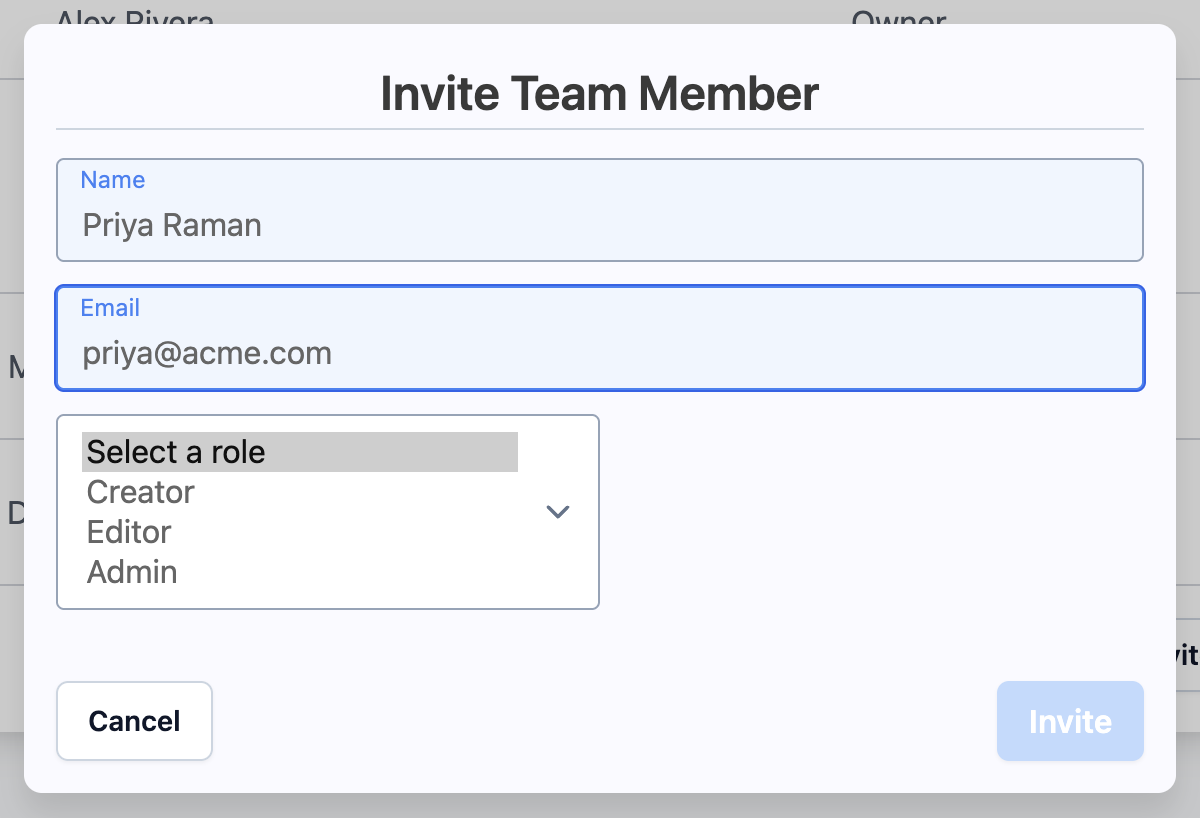
- Open Team and click Invite Team Member.
- Enter the person's Name and Email.
- Pick a role – Admin, Creator or Editor.
- Click Invite.
The invitation arrives by email with a join link. Until they accept, they appear in an Invites table below the members list, with an Actions menu offering Send Again (for when the email is lost) and Cancel Invite. Once they accept and confirm their email address they move into Team Members and you can start assigning them workspaces.
An invite link expires after 7 days. After that, cancel the stale invite and send a fresh one. The invitation email asks the recipient to be quick and mentions one day; the expiry Dewstack enforces is seven, so an invite opened on day three still works.
The four roles
| Role | What it is for |
|---|---|
| Owner | The account holder. Has every permission, including the team and the subscription. There is one Owner. |
| Admin | Manages the entire account except the team and the subscription – those stay with the Owner. |
| Creator | Creates, edits and publishes workspaces. |
| Editor | Edits workspaces. Cannot create or publish. |
What each role can do
| Permission | Owner | Admin | Creator | Editor |
|---|---|---|---|---|
| Create Workspace | ✓ | ✓ | ✓ | |
| Edit Workspace | ✓ | ✓ | ✓ | ✓ |
| Publish Workspace | ✓ | ✓ | ✓ | |
| Customize Workspace | ✓ | ✓ | ||
| Hosting Workspace | ✓ | ✓ | ||
| Analyse Workspace | ✓ | ✓ | ||
| Integrate Workspace | ✓ | ✓ | ||
| Manage SmartDocs | ✓ | ✓ | ||
| API & Agents | ✓ | ✓ | ||
| Manage Team | ✓ | |||
| Manage Subscription | ✓ |
These permissions map directly onto the sidebar. A Creator or Editor has no Customize, Hosting, Analyse Workspace, Integrate or Manage SmartDocs permission, so Customize, Hosting, Analytics, Integrations, SmartDocs and API & Agents are not merely locked for them – the entries are removed from the sidebar entirely.
Change someone's role
On the Team Members table, open the Actions menu on their row and choose Change Role. The new role applies immediately, including to any workspaces already assigned to them. You cannot change your own role, so the Actions menu does not appear on your own row.
Remove a member
Actions → Remove Member on their row, then confirm – the dialog asks "Are you sure you want to remove '' from your team?" and the confirm button reads Yes, Remove Team Member.
Removing someone revokes their access to every workspace at once. Their pages, edits and history stay in the workspace; only the person's access is withdrawn. You cannot remove yourself from your own team.
Seats and per-user billing
The member count beside the Invite Team Member button shows where you stand against your plan, as Team Members: 3 / 5. On plans with a hard limit, the invite button is disabled once you reach it, with the tooltip "Team member limit reached"; upgrade to invite more people.
On plans that bill per user, inviting is never blocked. You allocate seats on the subscription page, the count reads Team Members: 3 / 5 allocated, and Dewstack shows the cost of going past your allocation as "Additional users: $X/month each". If you have seats nobody is using, the page prompts you to reduce your allocation so you stop paying for them.
