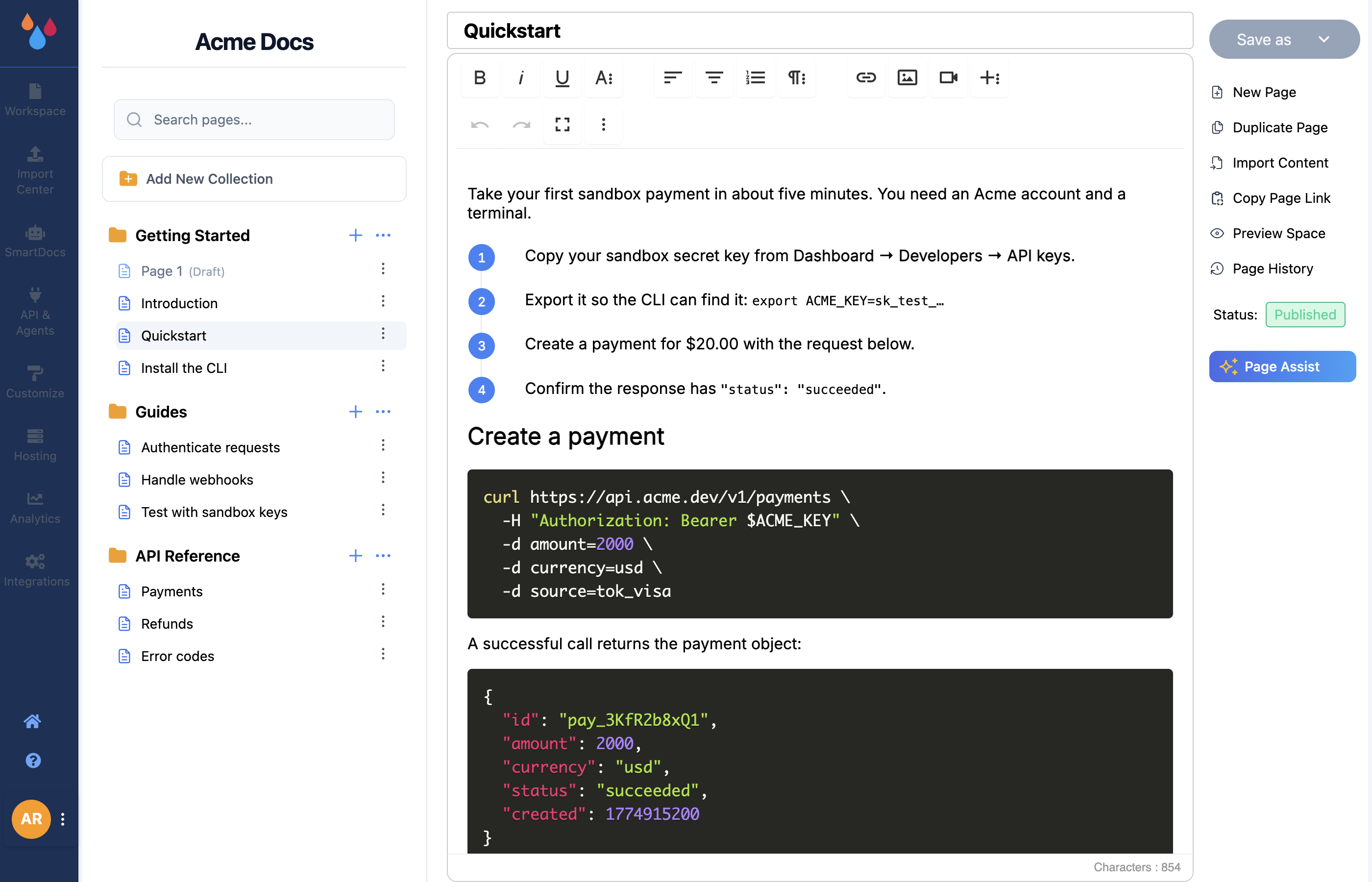
Opening a workspace puts you in the Dewstack editor, which is three columns: the collection sidebar on the left, the editor pane in the middle, and a narrow actions bar pinned to the right. The dashboard's own icon sidebar – Customize, Hosting, Analytics and the rest – stays to the far left and always applies to the workspace you have open.
The collection sidebar
The sidebar is your site's structure. At the top is the workspace name, then a Search pages... box, then the Add New Collection button, then the collections themselves.
Each collection expands into its pages. Pages nest – drag a page onto another to make it a child, drag to reorder within a collection, drag collections to reorder the sidebar itself. What you see here is what readers see on the published site, in the same order.
Two kebab (⋮) menus live in this column:
- On a collection: Edit Collection, Delete Collection, New Page, and Import Page (the last only appears if you have a subscription).
- On a page: Edit Page, Duplicate Page, and – on a page that already has children – New Page, which adds a child page.
Draft pages are shown greyed out with a (Draft) suffix, so you can see at a glance what is not live yet.
Selecting Edit Collection slides in a panel with the collection's Icon, Name, Slug, Short Description and, if you have created spaces, a Space select. Edit Page opens a Page Settings panel with the page's Title and Slug. Both end in Cancel / Save.
The editor pane
The middle column is one text field for the page title – placeholder Enter Title – and the rich-text editor underneath it. The editor renders content roughly as it will appear on the published page, and its toolbar covers headings, lists, tables, images, links and code blocks. See Text editor overview for what the toolbar can do.
If you open a collection with no pages in it, the editor is replaced by an empty state – "No pages in this collection" – with a Create First Page button.
The actions bar
The right-hand column holds everything you do to the page you are editing:
| Control | What it does |
|---|---|
| Save as | Split button; the dropdown offers Draft ("Page will not be visible to anyone") and Publish |
| Status | A pill reading Draft or Published |
| New Page | Adds a page to the current collection |
| Duplicate Page | Copies the page; the copy is named <name>(Copy) |
| Import Content | Opens the import dialog for this page |
| Copy Page Link | Copies the page's public URL |
| Preview Space | Opens your live site in a new tab |
| Page History | Opens Page Revision History with per-revision Restore |
| Page Assist | The AI writing assistant panel |
The Save as button reads Saving... while a save is in flight. Dewstack also autosaves revisions on a timer; you can turn that off in Customize → Auto-Save Option.
Two of these are plan-gated
Page History shows a padlock and an upgrade prompt without a subscription, and the number of revisions you can see is capped per plan. Page Assist is locked below Starter. An active trial unlocks both. Publish appears only if your role has the Publish Workspace permission.
