A workspace is one documentation site: its own collections and pages, its own theme, its own URL and its own access rules. You create workspaces from the workspaces list – the page you land on when you sign in to Dewstack – and there are three routes: a template, a document you already have, or a description of what you want.
How many workspaces you can have depends on your plan; the numbers are in Limits and plan requirements at the bottom of this page.
Start from a template
Under the Templates heading is a carousel of cards. The first two are Create template using AI and Create from scratch; after them comes the template library – twelve fully written starting points:
SOP Handbook, User Manual, Knowledge Base, FAQ, Internal Handbook, Troubleshooting Playbook, Incident Response Runbook, Release Notes & Changelog, Documentation Audit Checklist, Documentation Migration Checklist, Project Kickoff Checklist and Risk Assessment Matrix.
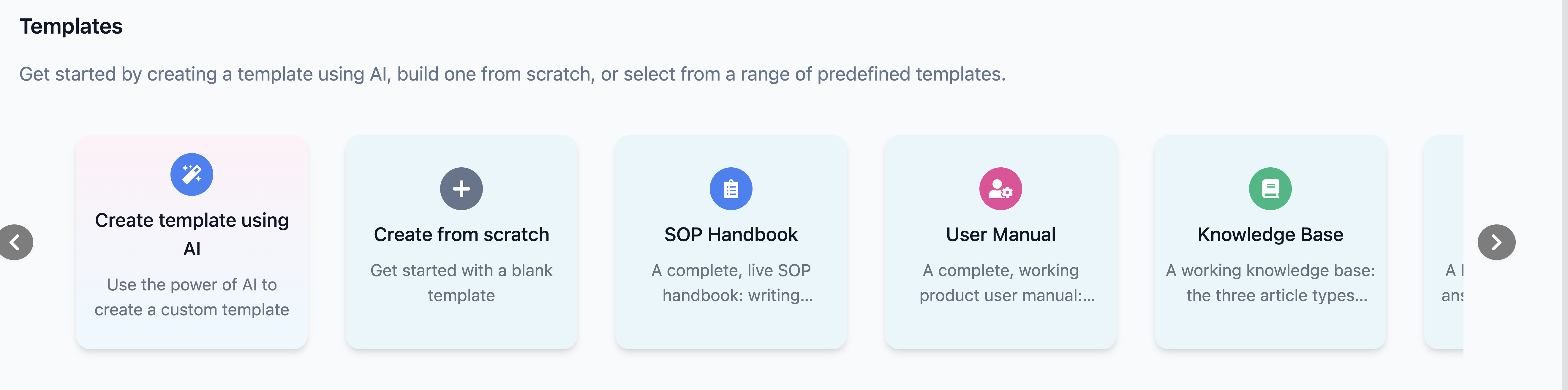 The Templates carousel: Create using AI
and Create from scratch, followed by the twelve written templates
Each library card is a real, populated site – around a dozen written pages per template, not an empty outline. One click provisions the whole workspace and opens it in the editor; there is no dialog to fill in first. You edit what does not apply rather than starting from a blank page.
Create from scratch ("Get started with a blank template") is different: it opens the New Workspace dialog where you enter a Name, choose Public or Private, and click Next to get an empty workspace.
A template only seeds the starting collections and pages – everything in it is yours to rewrite.
Private is locked with a padlock unless you have a paid subscription or an active trial. You are not stuck with the choice – visibility is changeable later under Hosting & Visibility.
Build a workspace from a document you already have
The banner at the top of the workspaces page – "Convert Documents to Smart Documentation" – turns an existing document into a full workspace. Dewstack extracts the text and the images, groups the content into collections and pages, and hands you the result in the editor.
This flow always creates a new workspace. If you want the same document folded into a workspace you already have, use Import content instead.
Generate a template from a description
Create template using AI – the first card in the Templates carousel – is the other AI flow, and it is a different thing: it produces a structured workspace based on what you say you're writing, rather than from a file you upload.
The Create Template with AI dialog has three steps:
- Step 1: Select a Documentation Type. Pick from the dropdown – User Manual, Technical Documentation, Knowledge Base, Software Documentation, FAQs, Troubleshooting Guide, Installation Guide, Standard Operating Procedure, Employee Handbook, Process Documentation, Product Documentation, Project Documentation – or choose Other and type your own.
- Step 2: Provide details about its purpose. A free-text box, and optional. The more you describe your product and audience, the more specific the generated structure is.
- Step 3: Provide Workspace details. Name and access, then Create Template.
Limits and plan requirements
Your workspace count is checked before anything is created – both in the dashboard, where the create cards are replaced with an upgrade panel at the limit, and by the server, which refuses creation past the limit with "Your plan allows N workspaces. Upgrade to create more."
| Plan | Workspaces |
|---|---|
| No subscription | 1 |
| Starter, and any active trial | 3 |
| Pro | 10 |
| Premium, Enterprise | Unlimited |
One other gate applies on this page: Private workspaces require a paid subscription or an active trial, in every dialog that offers the choice.
