A Dewstack account is owned by a team. Team Support is what lets more than one person sign in to that account: you invite colleagues by email, give each of them a role that decides what they can do, and assign them the specific workspaces they should work on. Everyone works in the same account, so there is one subscription, one billing relationship and one set of workspaces.
Team Support is a paid feature. On a free account you are a team of one.
What a team gives you
- Shared workspaces. A workspace belongs to the team, not to the person who made it. When someone leaves, their work stays.
- Roles. Four of them – Owner, Admin, Creator and Editor – each with a fixed set of permissions covering creating, editing, publishing, customising, hosting, analytics, integrations, SmartDocs, team management and billing. See Manage your team for what each role can do.
- Per-workspace assignment. A role says what someone can do; an assignment says where. A Creator only sees the workspaces you have assigned to them, which is how you keep the marketing handbook and the customer-facing API docs apart. See Assign a workspace.
- One bill. Everyone on the team draws on the team's subscription and its plan limits.
Seats
Your plan comes with a number of member seats. The Team page shows where you stand – Team Members: 3 / 5 – and disables Invite Team Member when a hard limit is reached.
Newer plans bill per user instead of enforcing a hard cap. On those, inviting is never blocked; you allocate seats on the subscription page and Dewstack shows the price of going beyond your allocation, as "Additional users: $X/month each". The member count then reads as Team Members: 3 / 5 allocated, and the page nudges you when you are paying for seats nobody is using.
Included seats by plan: Starter: 1, Pro: 3, Premium: 5, Enterprise: custom. Beyond those, extra members are billed per seat per month rather than blocked – the price per additional user drops as the plan goes up, and the exact figure is shown on the Subscription page before you confirm. Check Subscription for what you are currently paying and how many seats you have used.
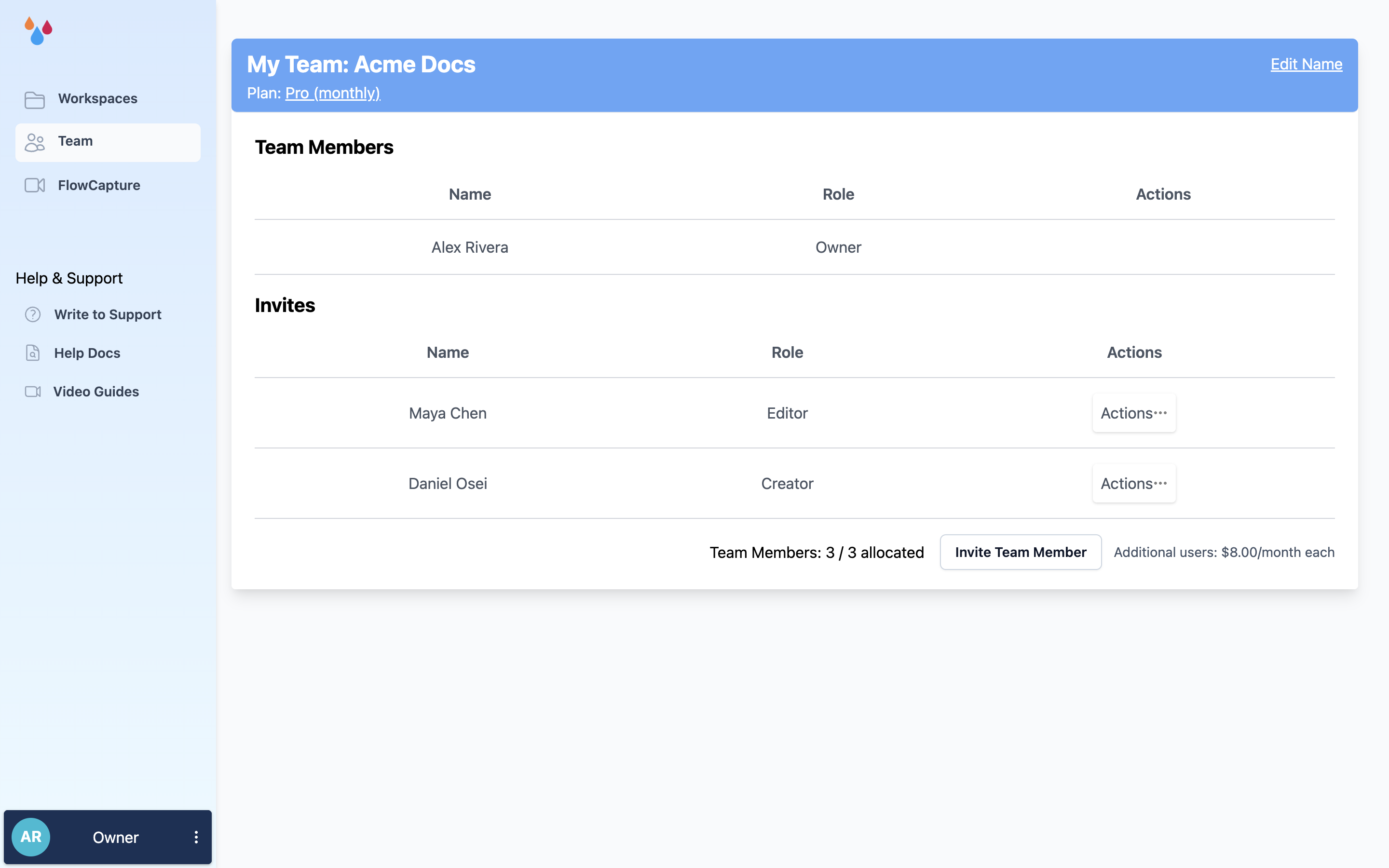
Getting to the Team page
Team sits in the left sidebar of the landing page, below Workspaces. It is visible only to people with the Manage Team permission, which in practice means the account Owner – Admins manage everything else in the account but not the team or the subscription.
