Upload files into Import Center from the Import Documents button in the page header. Dewstack accepts PDF, Word, plain text and markdown, extracts the text, and keeps the result in your document library until you use it for documentation or SmartDocs training.
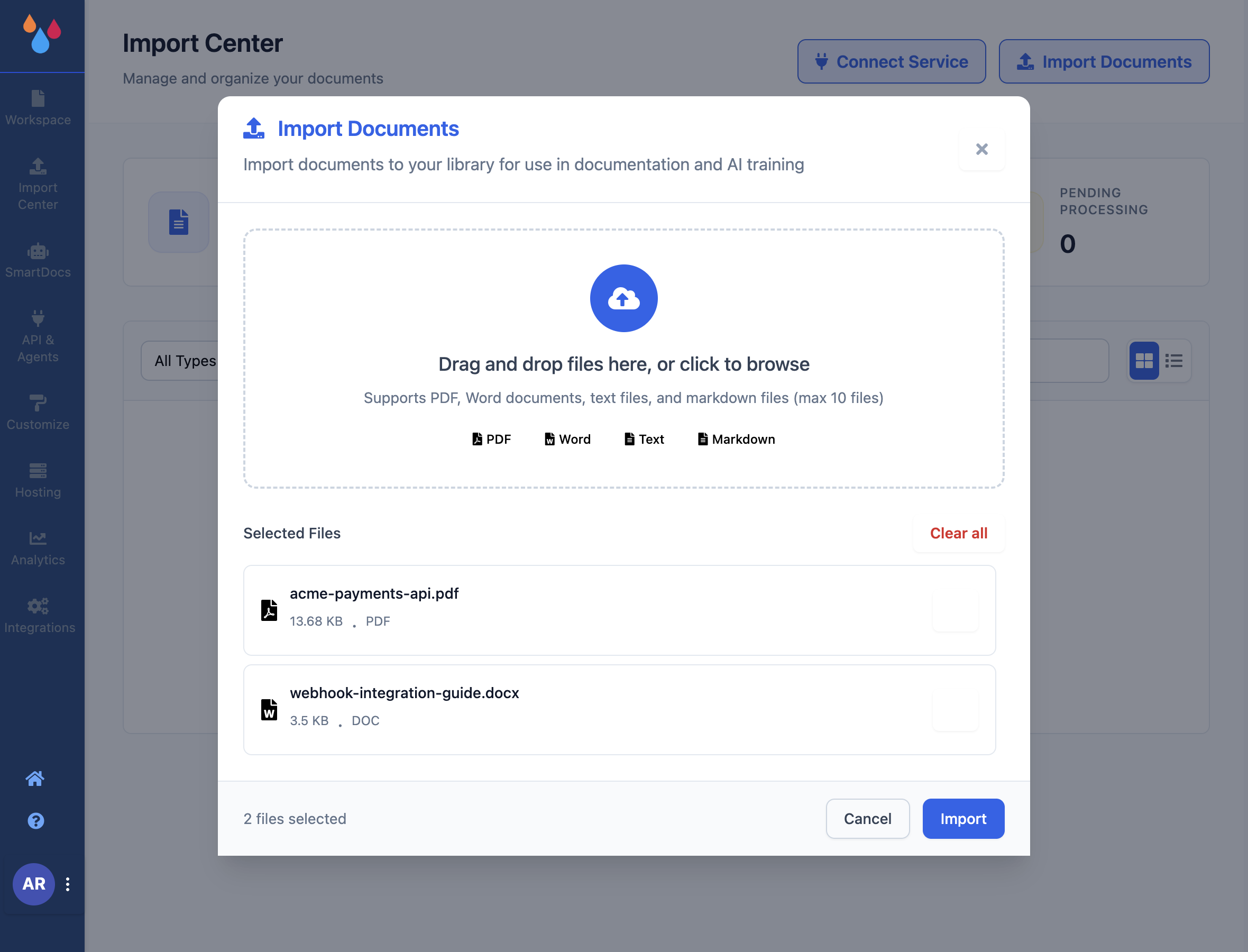
The dialog is titled Import Documents, with the subtitle "Import documents to your library for use in documentation and AI training".
Upload files
- Open Import Center and click Import Documents.
- Drag files onto the drop zone, or click it to browse. The zone reads "Drag and drop files here, or click to browse".
- Check the selected-files list. Remove anything you didn't mean to include with the ✕ on its row, or start over with Clear all.
- Click Import.
Each file appears in the document list as Pending while text is extracted, then flips to Processed. Extraction is quick for text and markdown and slower for long PDFs.
Accepted file types and limits
The file picker accepts .pdf, .doc, .docx, .txt and .md. The dialog shows these as four
badges – PDF, Word, Text, Markdown.
| Limit | Value |
|---|---|
| Maximum file size | 10MB per file |
| Files per upload | 10 |
| Maximum length for Use in Documentation | Roughly 320 pages of extracted text |
A file over 10MB is skipped with the message "File <name> is too large. Maximum size is
10MB." – the rest of the batch still uploads. Anything with an unsupported extension is dropped
silently apart from a warning toast.
What text extraction does
Dewstack reads the text content out of each file: pdf-parse for PDFs, mammoth for Word
documents, and a direct read for text and markdown. What you get is the words, not the layout –
columns, headers, footers and page furniture are flattened into a single stream of text. Use the
Preview action on the document's row to see exactly what was extracted before you build
anything from it.
Images embedded in a PDF survive the import. Dewstack pulls each embedded image out of the file, discards duplicates, uploads the rest to its image host, and rewrites the extracted content to point at the hosted copies. Screenshots in a product manual therefore come through into your pages rather than leaving gaps.
A PDF that is a scan – pages that are pictures of text, with no text layer – yields nothing. Those documents land as Failed. Run them through OCR before uploading.
Two limits worth knowing before you start
These are the two things that most often surprise people on a first import.
Long documents are rejected for documentation. Once extracted text passes roughly 320 pages, Use in Documentation is disabled on that row and the tooltip reads "Document too large (~N pages, limit: ~320 pages)". Split the source file into parts and upload them separately. The document is still fine to use for SmartDocs training.
Imported pages arrive flat. Dewstack's AI groups the content into collections, but every page inside a collection is created at the top level – parent/child nesting from the original document is not reconstructed, no matter how the source was structured. Pages are also created as Published, not drafts.
Plan a reorganisation pass
For anything longer than a few dozen pages, budget time to nest and reorder the results in the page tree straight after the import. Because the pages arrive published, that reorganisation happens on your live site unless you set them back to draft first.
Limits and plan requirements
Uploading files is not plan-gated in itself, but the Import Center sidebar entry is hidden without a subscription or an active trial, and for team members without the Manage Import Center permission. Importing from an external service is gated separately – see Connect a service.
