Dewstack loads a live-chat widget on your published docs site so readers can start a conversation without leaving the page. Three platforms are supported – Intercom, Crisp and Tawk.to – and each is one field on the Integrations page: the workspace ID that platform gives you.
The widget renders on your public documentation, not in the Dewstack dashboard. Conversations, routing and history all stay in the chat platform; Dewstack only embeds the widget.
Intercom Chat
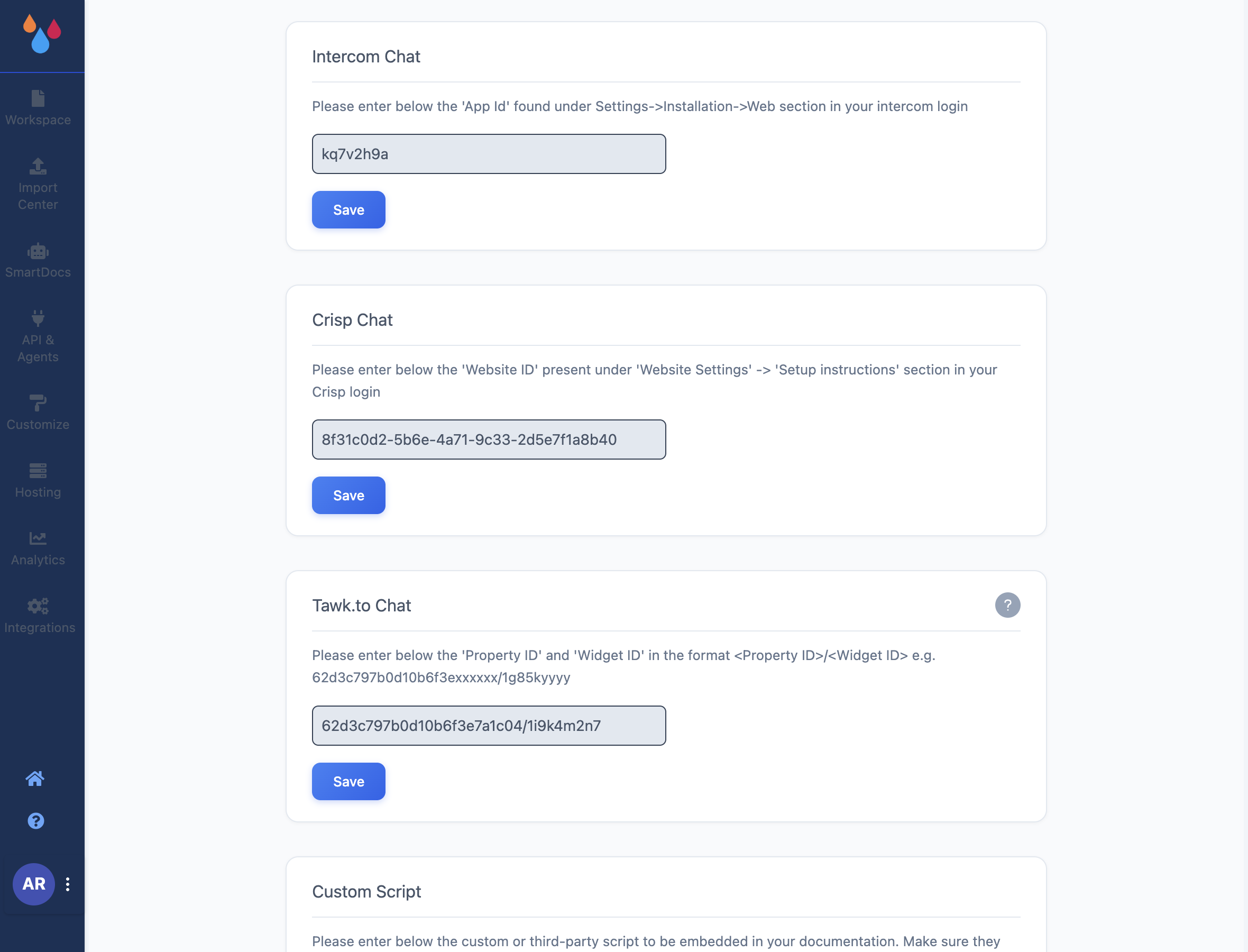
In the Intercom Chat card, enter your Intercom App Id and click Save. The card tells you where to find it: "under Settings->Installation->Web section in your intercom login". It is the short alphanumeric workspace ID that appears in Intercom's installation snippet.
Crisp Chat
In the Crisp Chat card, enter your Crisp Website ID and click Save. Crisp shows it under Website Settings → Setup instructions. It is a UUID – a long string with hyphens.
Tawk.to Chat
Tawk.to needs two values, entered in one field as <Property ID>/<Widget ID>, for example:
62d3c797b0d10b6f3exxxxxx/1g85kyyyy
Both come from your Tawk.to Administration area: the Property ID is in the Overview
section, and the Widget ID is under Channels → Chat Widget. Entering the Property ID on
its own is not enough – the widget will not load without the trailing /<Widget ID>.
Change or remove a chat integration
Every chat card behaves the same way. Once an ID is saved the field becomes read-only and the Save button is replaced by Remove. Click Remove to clear the ID and take the widget off your docs site, then save the new value if you are switching accounts.
One widget at a time
Configure only one chat platform per workspace. Dewstack does not stop you saving IDs for two or three, but the resulting page loads two or three floating chat launchers on top of each other.
Limits and plan requirements
- One ID per platform, per workspace. There is no per-page or per-collection targeting – the widget loads on every page of the docs site.
- The Integrations sidebar entry is locked on Starter, and when you have no subscription and no active trial. In those cases clicking it opens an upgrade prompt instead of the page.
- Team members need the Integrate Workspace permission. Owners and Admins have it; Creators and Editors do not.
If your chat platform is not one of these three, most of them publish a plain embed snippet that works through Custom Script Embed.
