FlowCapture is a Chrome extension that records you clicking through a task and turns the recording into a finished how-to page in your workspace. You click Start Capture, do the thing once, and Dewstack writes the steps, captions each screenshot and hands you a draft to review.
It exists for the documentation nobody writes: the SOP, the onboarding runbook, the "how do I refund an order" page. Those take an hour of alt-tabbing between the app and a screenshot tool. FlowCapture takes as long as doing the task.
How it works, end to end
- Install the extension from the Chrome Web Store and sign in to Dewstack in the same browser.
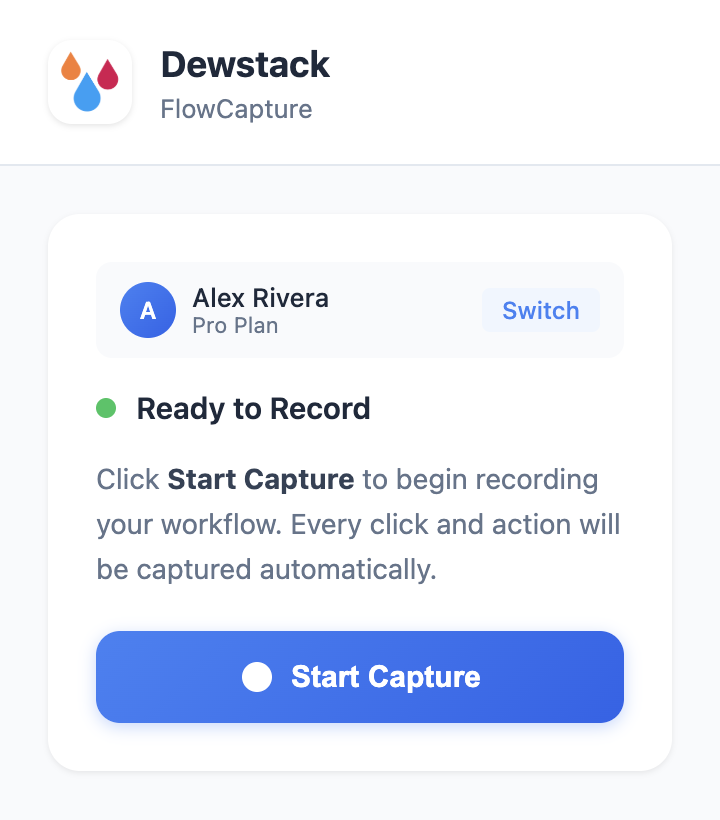
- Record. Open the app you want to document, click the FlowCapture icon, then Start Capture. Every click and every text entry is captured as a screenshot plus a description of what you did.
- Trim. When you click Done, a Review Your Captures panel opens in the page. Delete the shots that were false starts, retake a bad one, or add an extra capture by hand.
- Generate. Dewstack analyses the screenshots and writes a draft: a title, an overview, prerequisites, a numbered step list with each screenshot in place, what happens next, and a troubleshooting section.
- Review and publish in the dashboard, under FlowCapture in the left sidebar. Reorder and rewrite the steps, crop or annotate any screenshot, then pick the workspace, collection and page name.
What gets captured
FlowCapture records screenshots, not video. Each screenshot is a still of the visible tab paired with a short description of the action that produced it.
| Trigger | What you get |
|---|---|
| Clicking a button, link, tab or menu | A screenshot and a description of what you clicked |
| Typing into a field | A screenshot of the filled-in field |
| Moving to another page or view | A "Navigated to …" step, taken once the new view has settled |
| + Add Manual Capture, on the review panel | A screenshot on demand, added to the end |
Two things are deliberately smoothed over. Clicking the same element twice within two seconds counts once, so a double-click doesn't become two steps. And when you click something that navigates – a tab, a sidebar item, a menu – FlowCapture waits about a second before taking the shot, so the step shows the screen you arrived at rather than the one you left.
Nothing is captured between recordings. The extension only reads the page while a recording is running, and only on the tab you started it in.
Signing in
There is no key to paste and nothing to pair. FlowCapture uses the Dewstack session already in your browser: sign in to Dewstack in the same Chrome profile and the extension picks it up. The popup shows the account it found and its plan, with Switch beside it if you work across more than one Dewstack account. If it shows a signed-out state, use its Sign in link, log in, then reopen the popup.
Keyboard shortcuts
| Shortcut | Action |
|---|---|
Ctrl/Cmd + Shift + R | Start or stop recording |
Ctrl/Cmd + Shift + D | Open Dewstack |
Plans
FlowCapture recording is available on Starter, Pro, Premium and Enterprise plans, and during a trial. Without a subscription the popup shows an upgrade prompt instead of the record button, and the FlowCapture entry is hidden from the dashboard sidebar.
There is no cap on how many recordings you make or how many steps a recording can contain. Very long recordings produce longer drafts, so a single recording is best kept to one task.
