Dewstack has one save control: the split Save as button at the top right of the editor. Its dropdown holds two options, Draft and Publish, and choosing one both saves your work and sets the page's visibility. There is no separate "save" and "publish" step.
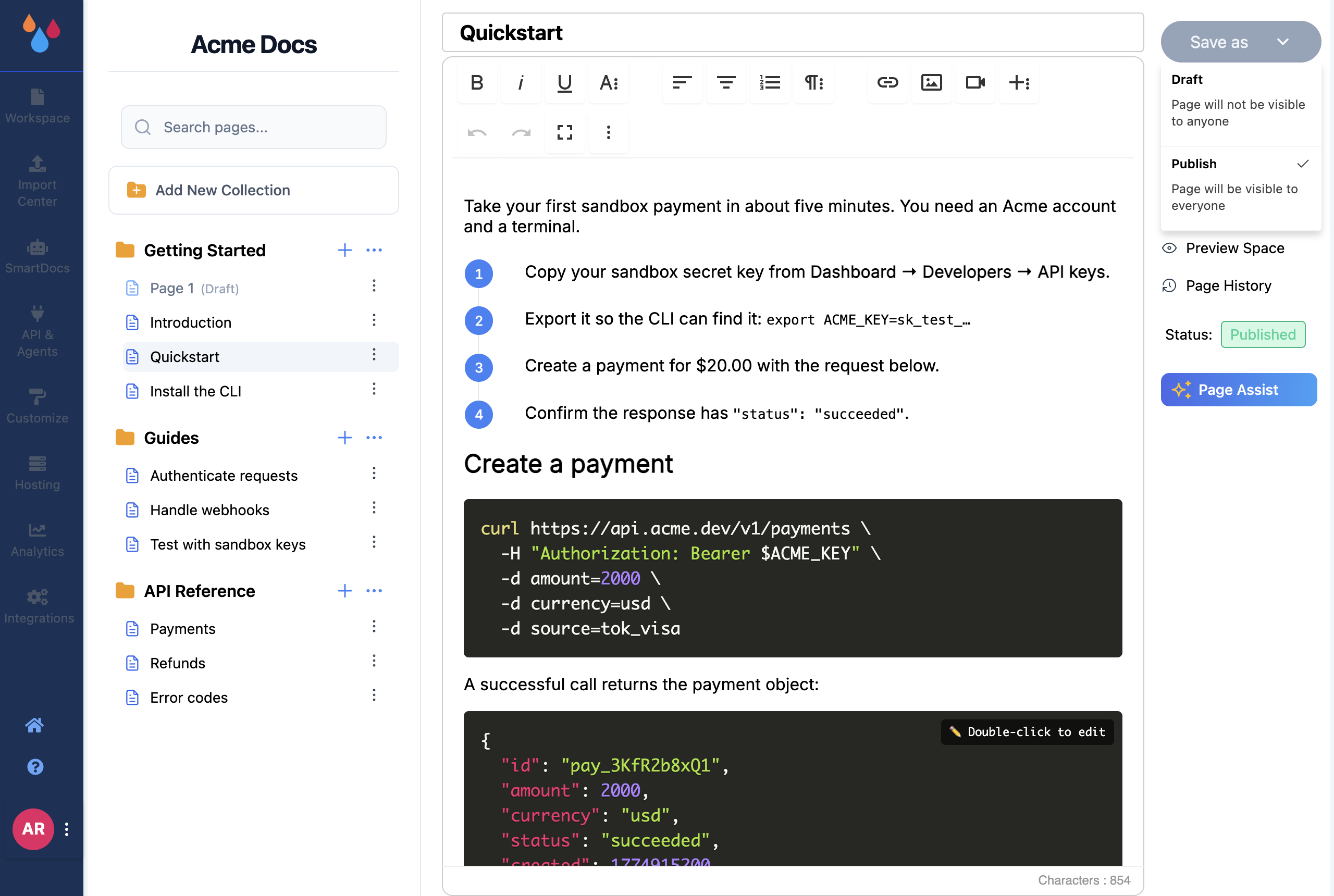
The dropdown puts a checkmark against the status the page is in now, and describes each option in one line: Draft – "Page will not be visible to anyone"; Publish – "Page will be visible to everyone".
What Draft actually means
A draft is invisible everywhere your readers and their tools can reach. Not dimmed, not watermarked – absent:
- On your docs site. Draft pages are filtered out of the sidebar, the landing page, prev/next navigation, search and the sitemap. Their URLs return a not-found page.
- In the REST API. Only published pages are ever returned, no matter which API key you use.
- Over MCP. An AI assistant connected to your docs – Claude, ChatGPT, Cursor – cannot see, search or fetch a draft.
- In site search. Nothing indexes what is not published.
One knock-on effect catches people out: a collection whose pages are all drafts disappears completely. It is not rendered as an empty section – the collection vanishes from the sidebar, the landing page and the tab bar until at least one page in it is published.
Publishing a page
Click Save as → Publish. The status pill next to the button flips from a yellow Draft to a green Published, the "(Draft)" suffix disappears from the page's row in the sidebar, and the page is live at its URL immediately. Publishing an already-published page replaces the live version with what is in the editor.
Publish is dimmed while the parent page is a draft
On a child page, Publish stays greyed out until its parent page is published. This is deliberate: a published child under an unpublished parent would have a URL whose middle segment points at nothing. Publish the parent first, then the child.
Publish is missing entirely without the right role
Publish is only rendered for team members whose role carries the Publish Workspace permission. Today that is Owner, Admin and Creator. A member with the Editor role sees only Draft in the dropdown – the Publish row is not there at all, so if you are hunting for a greyed-out button you will not find one. Ask an Owner or Admin to change your role on the team page.
Reading a page's status at a glance
| Where | Draft | Published |
|---|---|---|
| Sidebar row | Grey title with a (Draft) suffix | Normal title |
| Editor status pill | Yellow Draft | Green Published |
| Save dropdown | Checkmark on Draft | Checkmark on Publish |
The editor also shows Last Saved On: with a timestamp once a page has been saved at least once.
Autosave
Autosave is off unless you switch it on. It lives in Customize → Auto-Save Option, as a toggle labelled "Enable/Disable auto-save for content".
With the toggle on, Dewstack saves the page body roughly five seconds after you stop typing – the Save as button reads Saving… while it works – and on paid plans and during a trial it also writes an Auto revision to Page History a few seconds later. Manual saves write a Manual revision the same way, so your history distinguishes the two.
Autosave only ever saves content; it never changes a page's status. A draft stays a draft. But a published page stays published, which means autosave pushes your half-finished edits to the live site without you clicking Publish. If you need to rework a published page quietly, duplicate it and edit the draft copy.
With autosave off, nothing is saved until you click Save as
That is the default state for a new workspace. If you close the tab or navigate away mid-edit without using Save as, the work is gone – there is no draft buffer and no recovery prompt.
