Recording is the part you do once, in the app you are documenting. This page covers installing the extension, what the recording bar gives you, and how to fix a recording before it becomes a draft – which is much cheaper than fixing the draft afterwards.
Install FlowCapture
- Open FlowCapture in the Dewstack sidebar and click Install FlowCapture, or go straight to the Chrome Web Store listing.
- Click Add to Chrome, then Add extension.
- Pin it: click the puzzle-piece icon in Chrome's toolbar and click the pin beside Dewstack FlowCapture. You will be reaching for it often enough to want it visible.
- Sign in to Dewstack in the same browser. The extension uses that session – there is no key to copy.
FlowCapture is a Chrome extension and works in Chrome and other Chromium browsers that use the Chrome Web Store. There is no Firefox or Safari build.
Start a recording
Open the tab you want to document, click the FlowCapture icon, then Start Capture.
The extension needs your click on its toolbar icon to get permission to photograph the tab, so this is the one step you cannot skip or automate. Chrome grants that permission per tab, per visit.
A small Dewstack bubble appears in the bottom-right corner of the page with a red count badge. Click the bubble and it expands to show Recording, the running step count, Cancel and Done. Click it again and it collapses back to a bubble, out of the way of whatever you are recording.
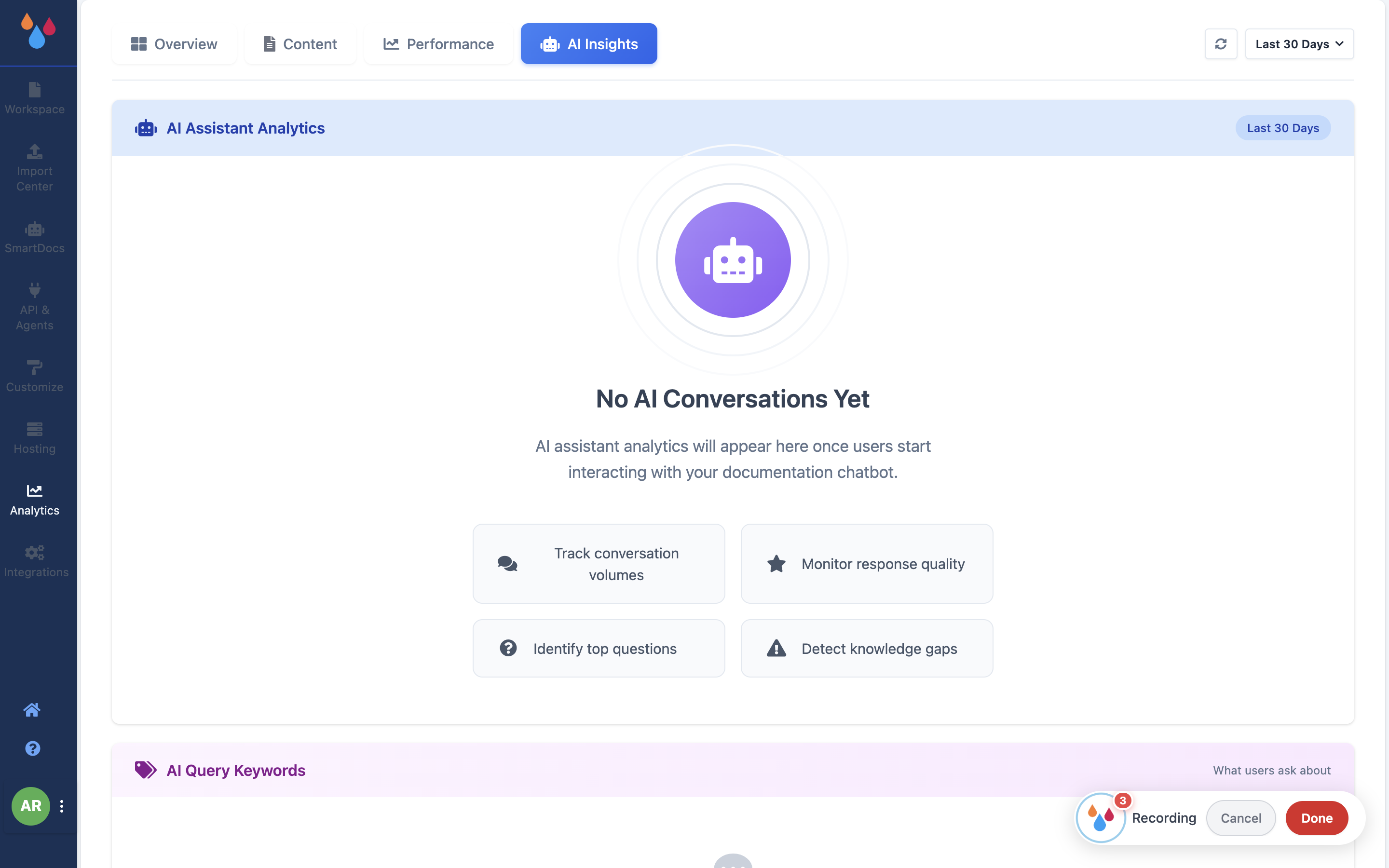
Recording follows you across pages. Navigate, open a new view, submit a form – the widget and the
captured steps survive the page load. What it will not do is start on a browser-internal page:
chrome:// settings, the extensions page and the new-tab page are off limits, and the popup
says so rather than starting.
If the count stays at zero
The badge is the only signal that captures are landing. If it is still on zero after several clicks, the tab's screenshot permission was never granted – usually because recording was started from somewhere other than the extension's own popup, or because you switched to a different tab. Click Cancel, click the FlowCapture icon on the tab you want, and start again.
The count lagging by a second or two is normal: on a click that navigates, FlowCapture waits for the new view to settle before taking the shot.
Trim before you generate
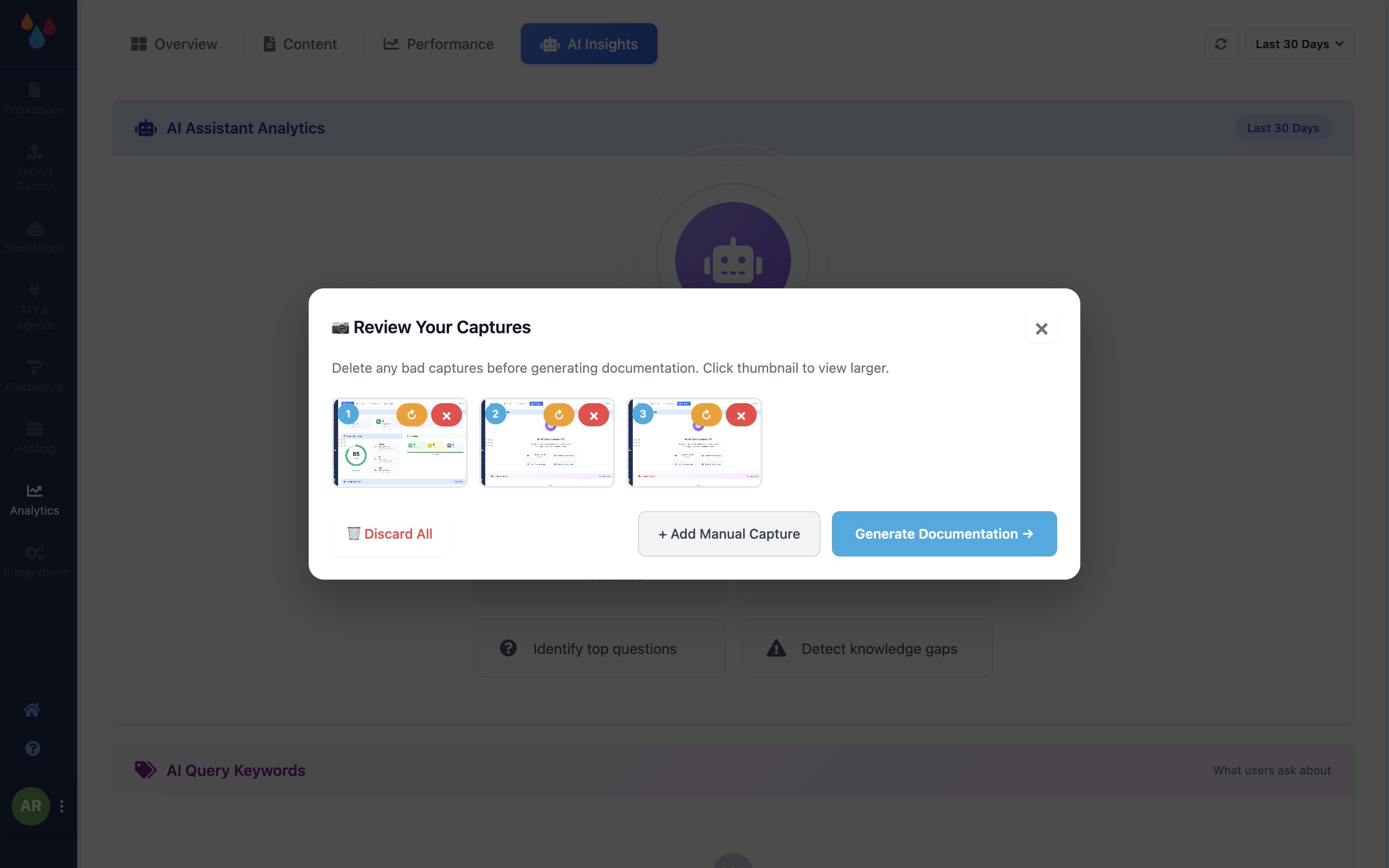
Click Done and a Review Your Captures panel opens over the page – "Delete any bad captures before generating documentation. Click thumbnail to view larger." – with a numbered thumbnail per step. This is the cheapest place to fix a recording, because everything after it is written from these screenshots.
| Control | What it does |
|---|---|
| × on a thumbnail | Deletes that capture |
| ↻ on a thumbnail | Retakes it against the current screen |
| Click a thumbnail | Opens it larger, to check before deleting |
| + Add Manual Capture | Adds a shot of what is on screen now, at the end |
| Generate Documentation → | Sends the captures to Dewstack and writes the draft |
| 🗑️ Discard All | Throws the recording away |
Reordering is not available here – steps stay in the order you performed them. If you need to move one, do it on the Edit Steps screen in the dashboard, which is drag-to-reorder.
Delete the flailing
A recording of a task you know well is usually 20% wrong turns – a menu you opened by mistake, a field you re-typed. Deleting those captures here is one click each.
Generate Documentation takes a few moments – longer for a long recording – and then hands off to FlowCapture in the dashboard, where your draft is waiting for review.
What Dewstack writes
Each captured step becomes one step in the draft. Around them, Dewstack writes a title, an overview, a prerequisites list, a "what happens next" section and a short troubleshooting section, all from what it can see in the screenshots.
It is a first draft, and it reads like one: accurate about the clicks, guessy about the why. The screenshots and their order are the valuable part; expect to rewrite some of the prose in review.
Recording things you would not screenshot
Every capture is a picture of your screen at that moment, and it is uploaded to Dewstack. Anything visible is in the screenshot: customer names in a list, an email address in a header, a token in a URL bar.
Use test data
Record against a sandbox, a demo account or a seeded test record. If you do capture something sensitive, delete that thumbnail in Review Your Captures before you press Generate Documentation – once the recording is sent, the screenshot has been uploaded.
