Everything you can do to an existing collection is either a drag or an item in its kebab menu (the ⋮ next to the collection name in the workspace editor sidebar). This page covers reordering, the icon picker, the short description, deleting, and moving a collection into a different space.
Reorder collections by dragging
The order of collections in the editor sidebar is the order readers see on your docs site. Drag a collection up or down the sidebar and the new order is saved immediately – there is no Save step.
One thing blocks a drag: an unsaved page anywhere in the workspace. Dewstack stops the move with "Unable to move the Collection or Page!" and tells you to save the untitled page as a draft first. Save it, then retry.
The kebab menu
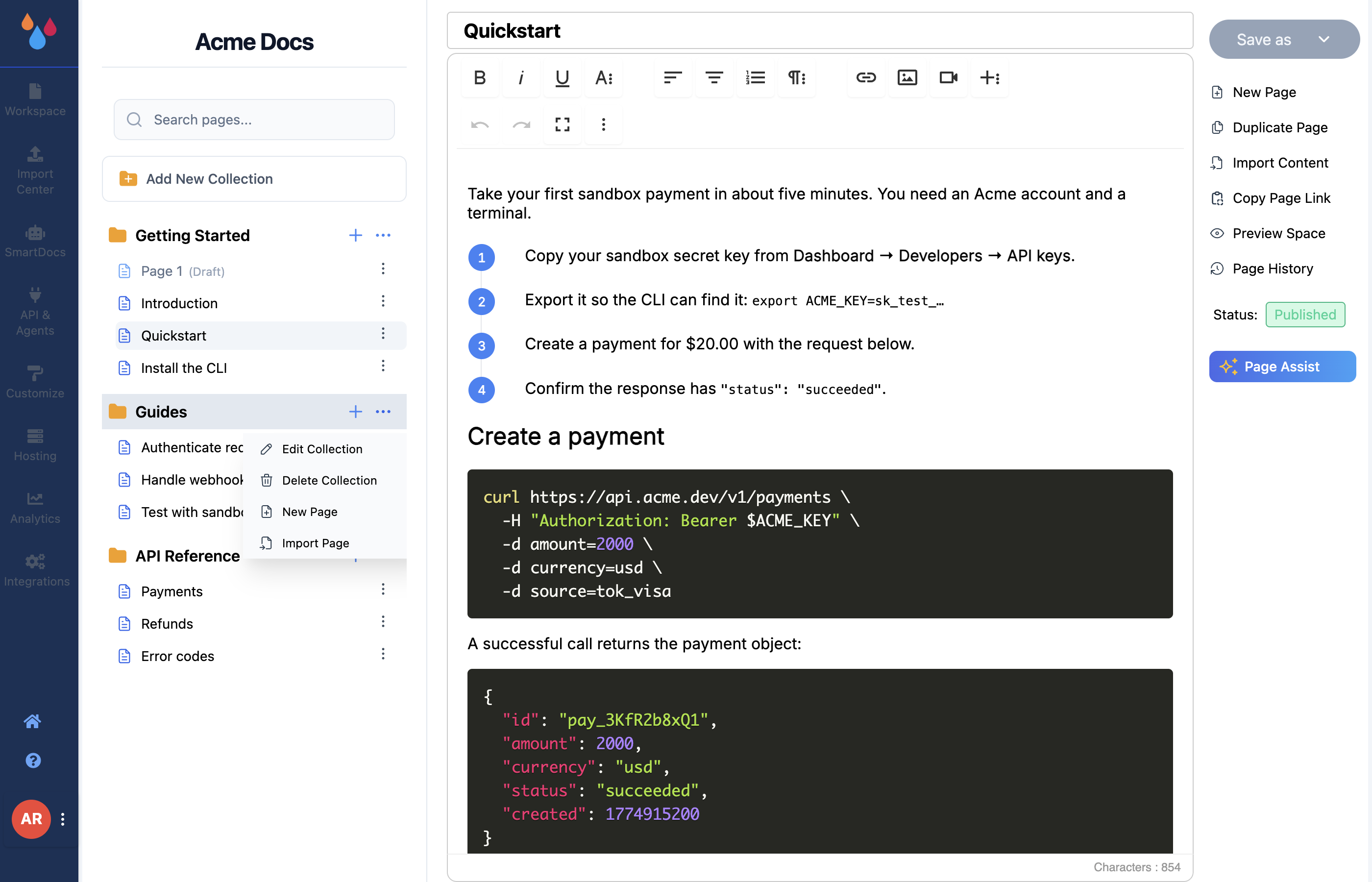
| Item | What it does |
|---|---|
| Edit Collection | Opens the side panel with Icon, Name, Slug, Short Description and Space |
| Delete Collection | Deletes the collection and every page in it |
| New Page | Adds an untitled draft page to this collection |
| Import Page | Opens the import dialog – only rendered if the workspace has a paid subscription |
Without a paid subscription or an active trial you will not see Import Page at all; it is not dimmed, it is absent. See Import Content for what the dialog accepts.
Choose a collection icon
The icon picker sits at the top of the Edit Collection panel – the same picker you get when you create a collection, where it is pictured – and it has three states.
Auto (the default). The picker reads "Auto: an icon is chosen from the collection's name." You do not have to touch it – Dewstack matches the name against its icon set and picks something reasonable.
A Tabler icon. Type in the Search icons… box and the grid filters as you type, matching both
the icon name and related terms – searching api finds code and api, searching security finds
shield and lock. Click one to select it. Once an icon is set, the picker shows its name plus a
reset to auto link.
A custom image. The Use a custom image link at the bottom right opens a file picker that accepts any image type.
Where the icon actually shows up depends on which kind you picked, and this is easy to get wrong:
- A Tabler icon renders both next to the collection in your docs sidebar and on the landing page.
- An uploaded image renders on the landing page only. It does not appear in the sidebar.
The picker's own footnote – "Shown on your docs landing page and lists." – is the short version.
Write a short description
Short Description is one line of text that appears under the collection's name on your docs landing page, in the card or row for that collection. It is not shown in the sidebar, not shown on article pages, and not used as a meta description. If your landing page is switched off in Customize, it is not shown anywhere.
Treat it as a one-sentence answer to "what is in here?" – "Endpoints, authentication and rate limits", not "This section contains information about our API."
Move a collection into a different space
If your workspace uses spaces (the tabs across the top of your docs site), a collection belongs to exactly one of them. There are two ways to move it:
- From the collection. Open Edit Collection and change the Space select, then Save.
- From Settings. Open the Spaces (Tabs) panel, remove the collection's chip from one space and add it to another.
Public URLs carry no space segment, so moving a collection between tabs does not change a single page URL. It only changes which tab the collection appears under and which sidebar it shares.
Delete a collection
Delete Collection removes the collection and every page inside it, and a confirmation dialog stands between you and that. There is no undo and no trash.
Two constraints are worth knowing before you plan a reorganization:
You cannot delete your last collection
When a workspace has only one collection left, Delete Collection is dimmed and clicking it does nothing. Create the replacement collection first, move the pages you are keeping, then delete.
Deleting a collection does not affect any space it belonged to – the space stays, just with one fewer collection in it.
