A custom domain serves your Dewstack workspace from an address you own – docs.acme.com instead of acme.dewstack.com. You point a CNAME record at custom.dewstack.com, enter the domain in Settings → Hosting & Visibility, and Dewstack verifies the record before saving it. The
feature requires a paid plan or an active trial.
You can connect a top-level domain such as acme.com or a subdomain such as docs.acme.com. You cannot connect a subdirectory like acme.com/docs – a CNAME points at a host, not a path.
Point a CNAME record at Dewstack
- Sign in to the DNS control panel at your domain registrar or DNS provider.
- Add a CNAME record for the hostname you want to use – for example
docs– with the targetcustom.dewstack.com. - Save the record and wait for it to propagate. This is usually minutes but can take up to 48 hours.
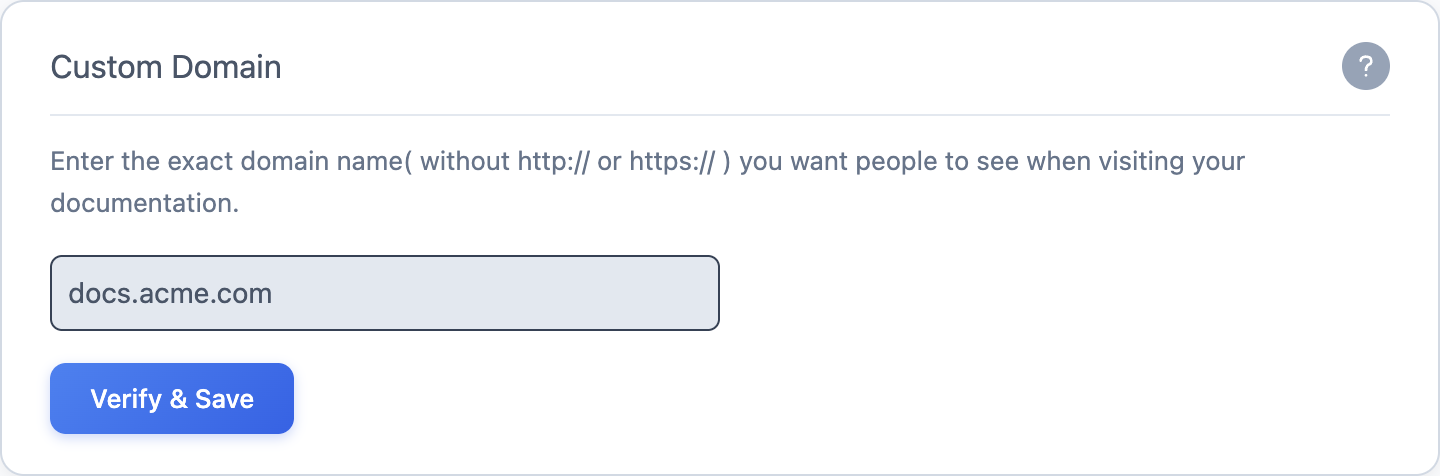
- In Dewstack, open the workspace and go to Settings → Hosting & Visibility, then scroll to the Custom Domain card.
- Type the domain exactly as readers will see it, without
http://orhttps://– the field's placeholder isE.g. docs.your-domain.com. - Click Verify & Save.
A CNAME cannot coexist with another record of the same name. If the hostname already has an A, AAAA, TXT or other record, delete those first.
What Verify & Save does
Dewstack looks up the CNAME for the domain you entered and checks that it resolves to custom.dewstack.com. On success you get "Custom Domain is configured successfully.", the
domain is registered with Dewstack's hosting layer, and a TLS certificate is issued for it
automatically – there is nothing to upload and no certificate to renew. HTTPS usually starts
working within a few minutes of the domain being registered.
Two failures are worth knowing:
- "CNAME record is not configured yet or is incorrect in your DNS. Please recheck and verify again." – the lookup did not find the expected record. Nine times out of ten this is DNS propagation, not a mistake: the record is correct but the resolver Dewstack used has not seen it yet. Wait and click Verify & Save again rather than editing the record.
- "This domain is already associated with a space. Please choose a different domain and retry." – another workspace has claimed that exact domain. Remove it there first.
Cloudflare users: turn the proxy off
If your DNS is on Cloudflare, set the record's Proxy status to DNS only – the grey cloud, not the orange one. Proxying hides the real CNAME target, so verification fails and your docs site may not serve correctly afterwards.
Remove a custom domain
Once a domain is saved, the field is read-only and the button becomes Remove. Clicking it unregisters the domain and confirms with "Custom Domain is removed successfully." Your docs stay reachable at the *.dewstack.com subdomain, which never goes away. Delete the CNAME record at your DNS provider afterwards so the hostname does not dangle.
To connect a different domain, remove the current one first – a workspace holds one custom domain at a time.
Limits and plan requirements
- Custom Domain requires a paid plan or an active trial. Without one the card shows a padlock and the tooltip "Please upgrade to access this feature."
- One custom domain per workspace.
- Team members need the Hosting Workspace permission to open Hosting & Visibility. Owners and Admins have it; Creators and Editors do not.
If a domain still will not verify after 48 hours, contact support@dewstack.com with the domain name and the CNAME record you added.
